> ## Documentation Index
> Fetch the complete documentation index at: https://www.tella.com/docs/llms.txt
> Use this file to discover all available pages before exploring further.
# Record a video using the Chrome extension
With [**Tella for Chrome**](https://www.tella.com/chrome "https://www.tella.com/chrome"), you can record amazing videos from wherever you are inside Chrome.
You can combine multiple clips together, customize styles and layouts, and everything you say is automatically transcribed.
The result is better, more engaging videos for teaching people things, selling products, or just sharing your ideas.
## Here's how it works
**Install** the extension from the Chrome Store.
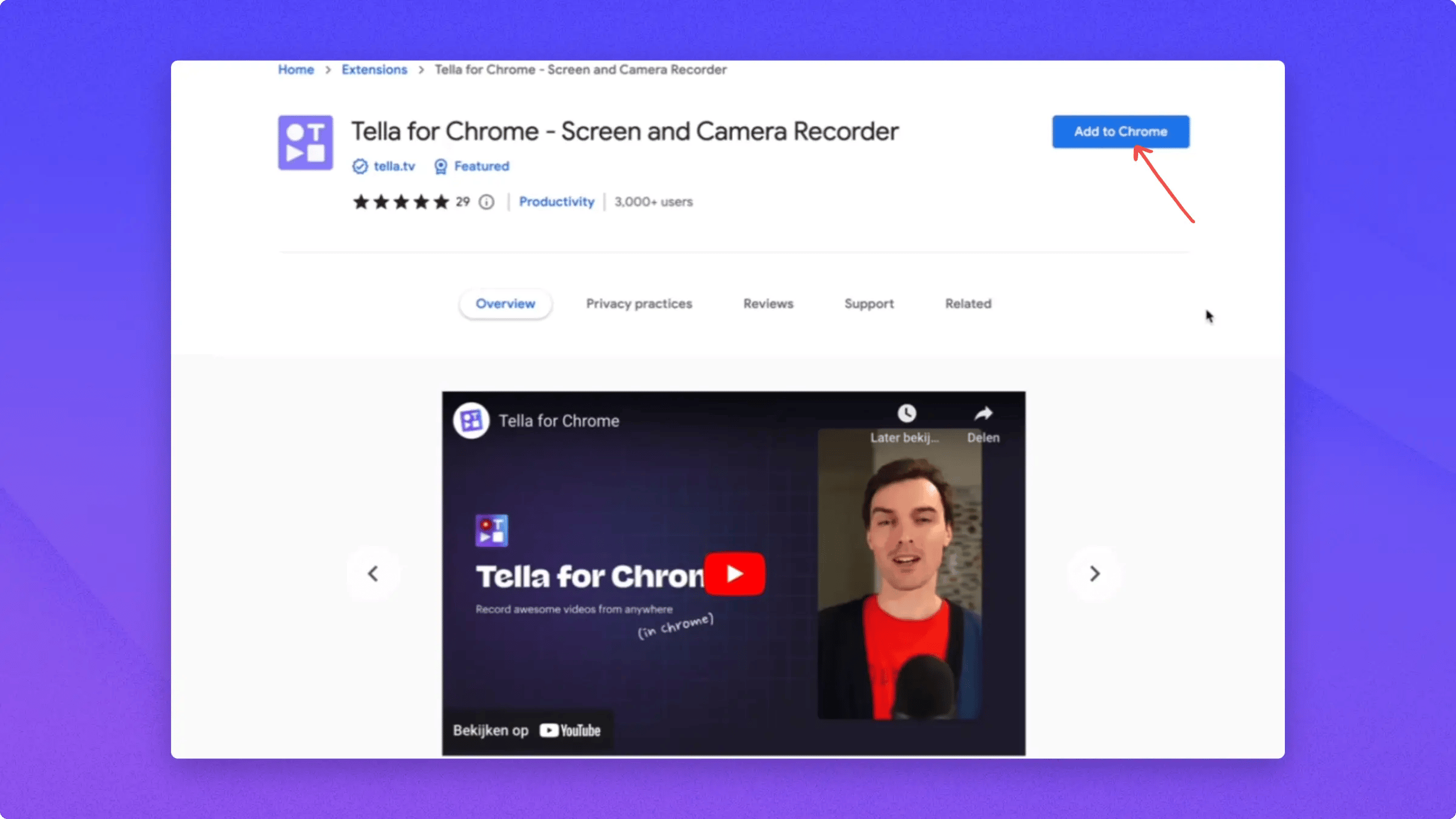 Make sure to **pin** it for easy access.
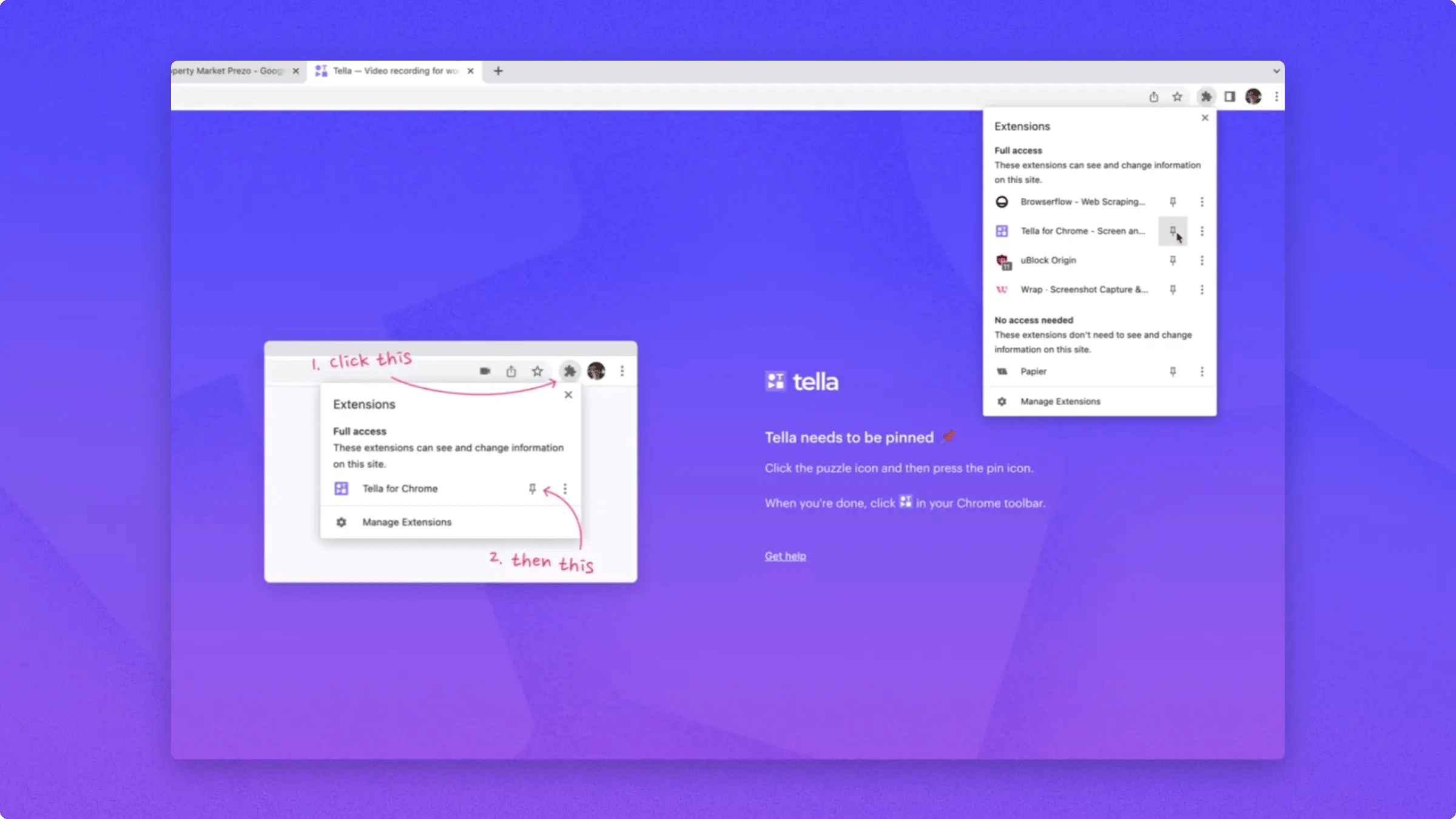 Now you can open Tella wherever you work or browse inside Chrome and start recording.
## Recording a video
To start recording, open the **extension**, then click **Share**.
Now you can open Tella wherever you work or browse inside Chrome and start recording.
## Recording a video
To start recording, open the **extension**, then click **Share**.
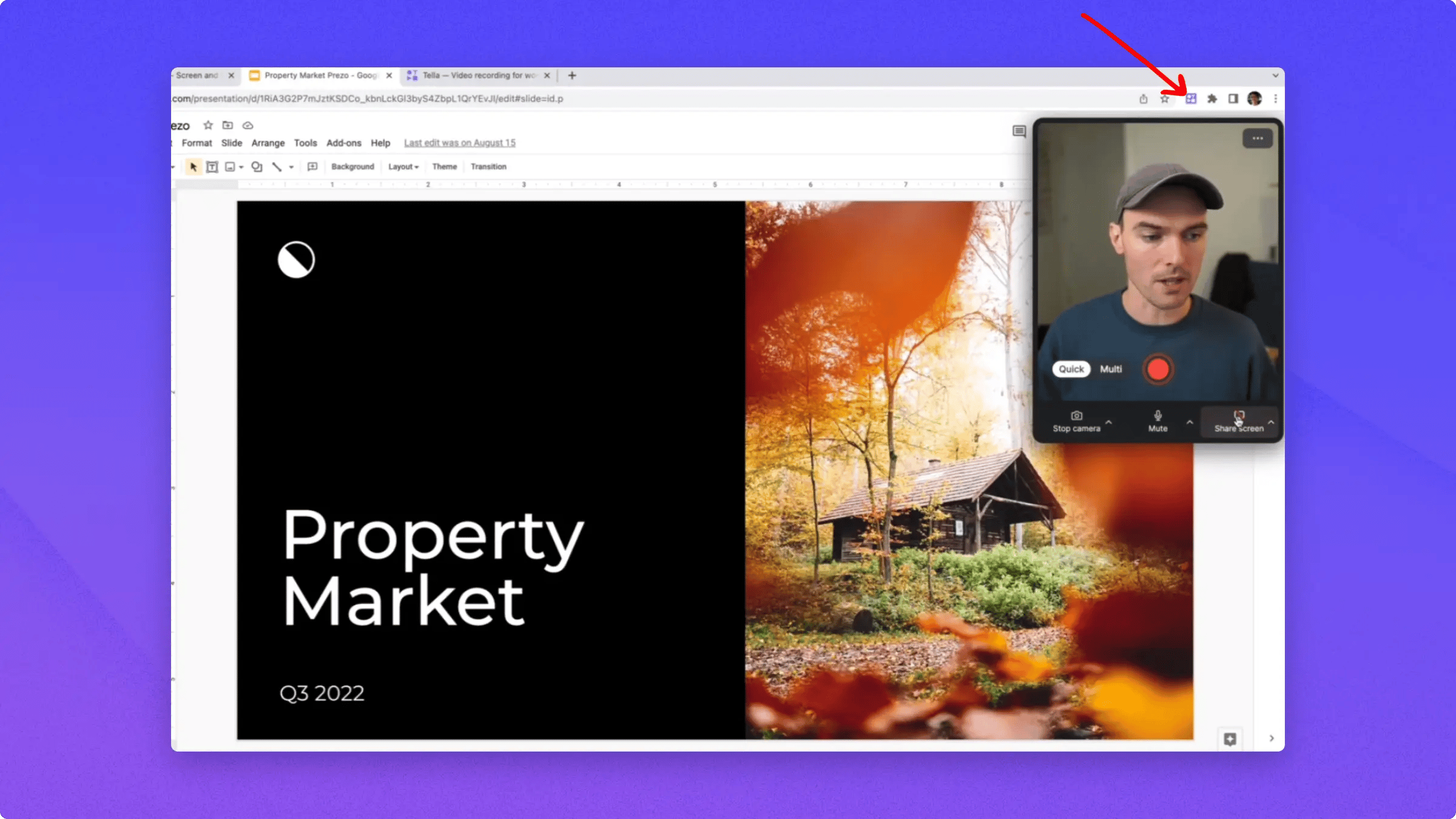 Once you start recording, you can change your screen selection by either stopping or cancelling the recording and pressing the "Share screen" button again
Now click the **red button** to start the recording.
Once you start recording, you can change your screen selection by either stopping or cancelling the recording and pressing the "Share screen" button again
Now click the **red button** to start the recording.
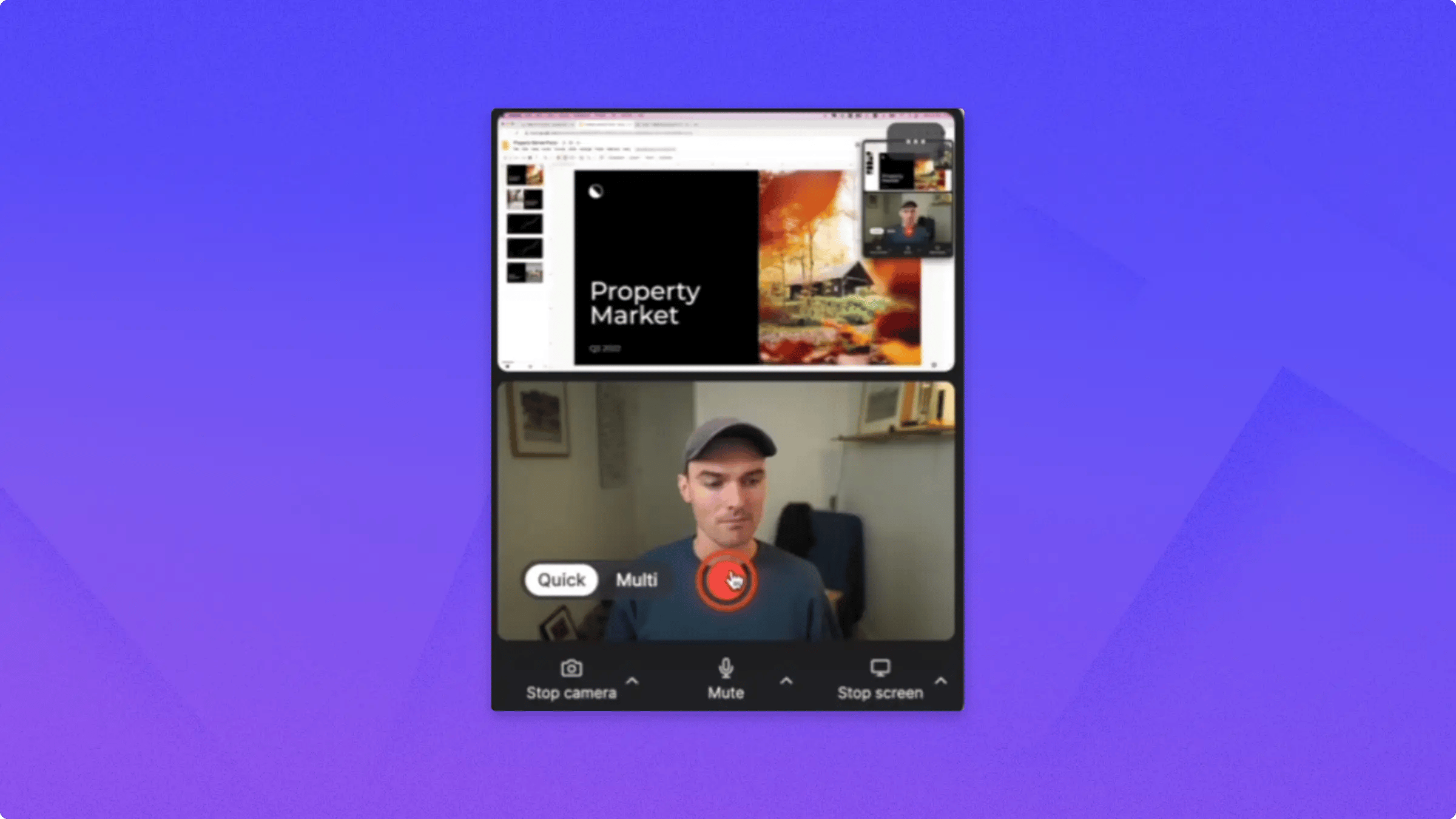 When you're done, hover over the **toolbar** and click **Stop**.
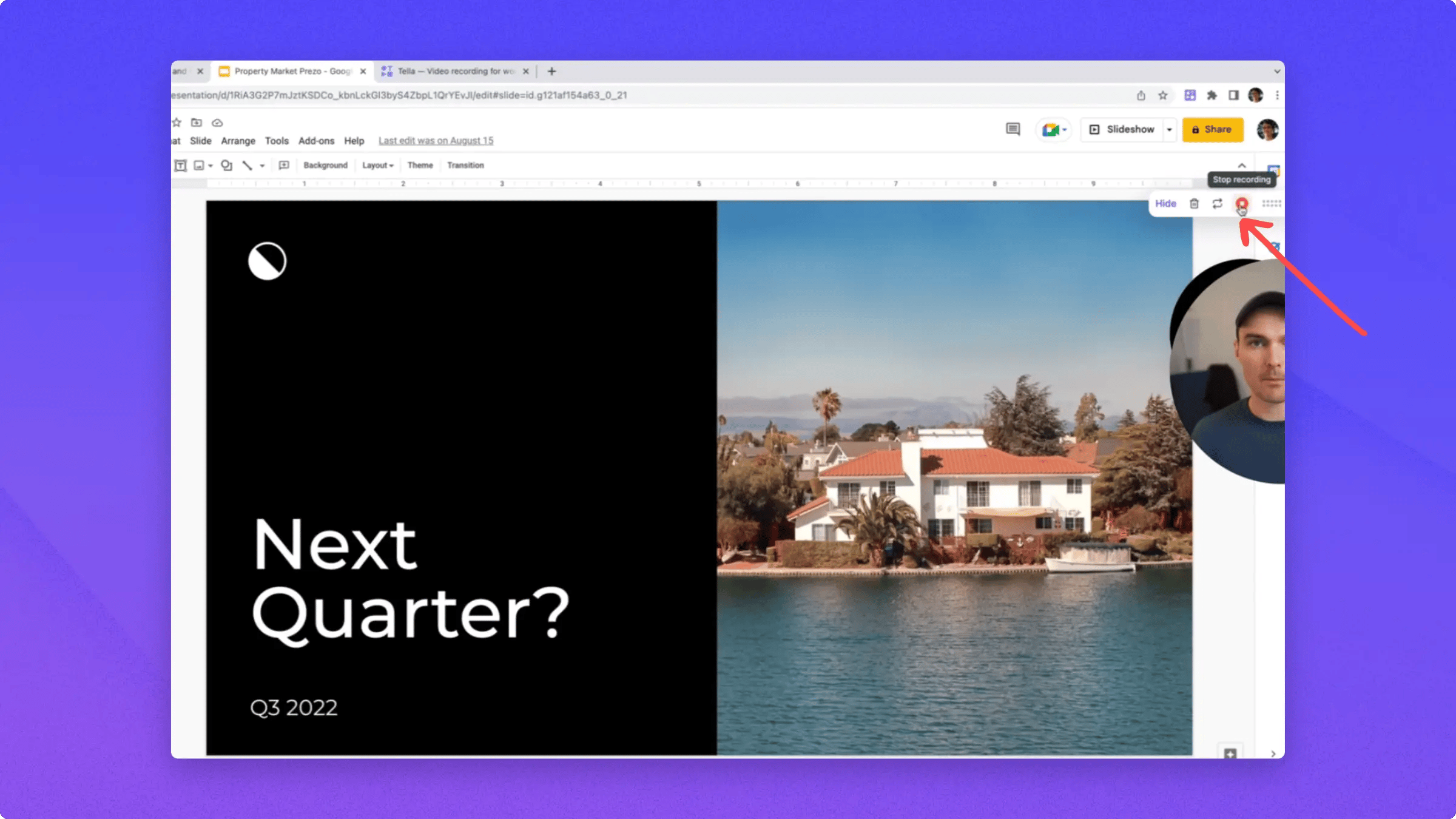 Tella uploads and saves your recording in the background so that it's ready to watch and share instantly.
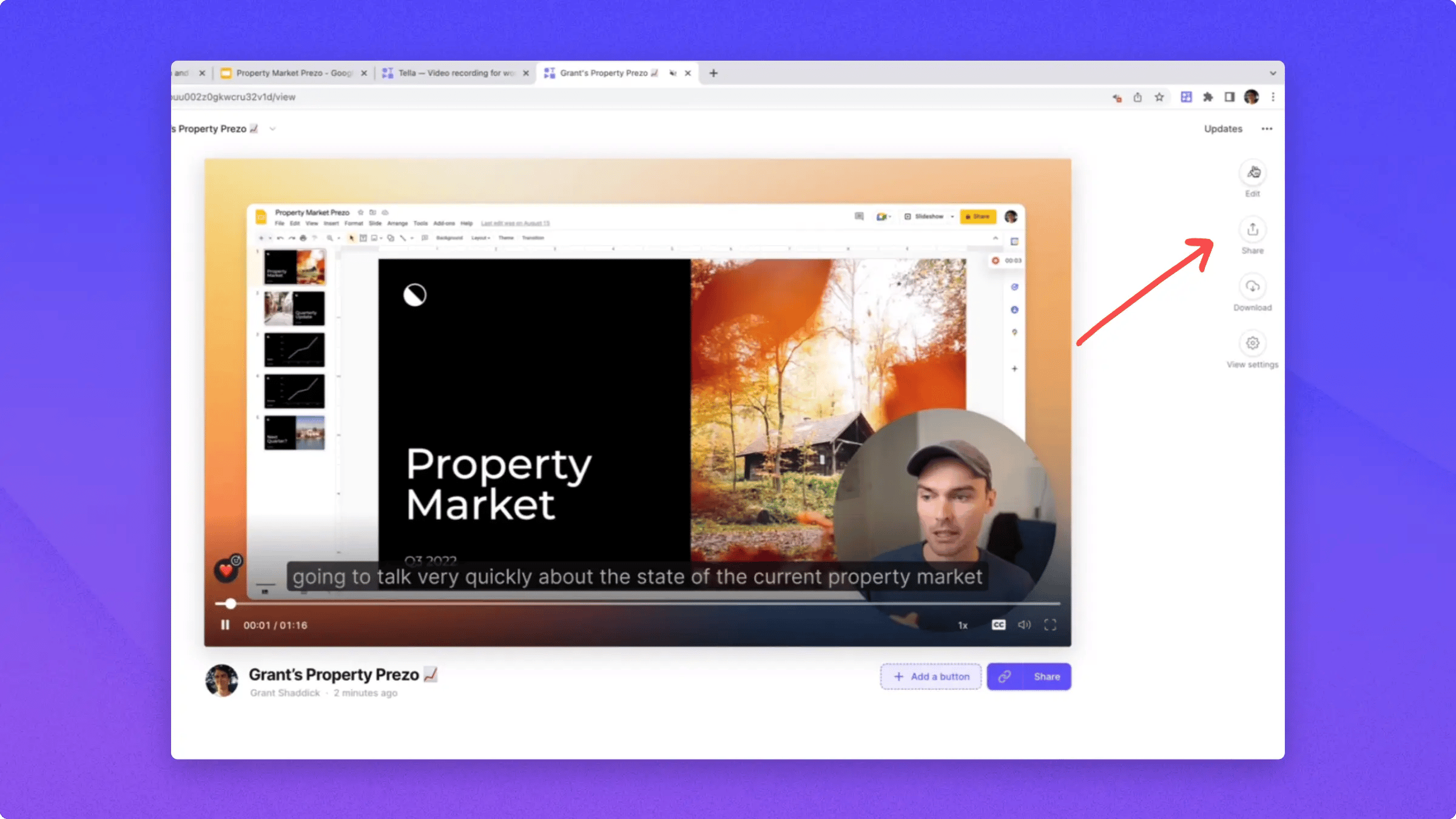
You can **edit** your videos, **share** them as a link on the web, or **download** them as an MP4 file.
Tella uploads and saves your recording in the background so that it's ready to watch and share instantly.
You can **edit** your videos, **share** them as a link on the web, or **download** them as an MP4 file.
 ## Choose your recording resolution
The camera and screen previews each have a **resolution pill** in the corner. Click the pill to pick the resolution you want to capture at — up to **1080p** for the camera and up to **4K** for the screen.
Camera resolutions that your selected webcam can't produce natively are greyed out in the picker. If you change cameras, the available options update to match what the new camera supports.
## Switch between quick mode and multiple clips
Recording settings live in the extension's **Settings** panel. Click the **…** menu in the top-right corner of the popup and choose **Settings**, then under **Recording mode** pick:
* **Quick** — stop recording and you're taken straight to the view page with the share link already copied. Each recording becomes its own standalone video.
* **Multi-clip** — record several clips back-to-back and combine them into a single video before sharing.
See [record faster with quick mode](/docs/help/recording/record-faster-with-quick-mode) and [use clips](/docs/help/recording/use-clips) for the full walkthroughs.
## Turn the countdown on or off
By default, Tella shows a three-second countdown before recording starts. To skip it, open the **…** menu, choose **Settings**, and turn off **Countdown**. Tella remembers your choice for future recordings.
## Advanced recording
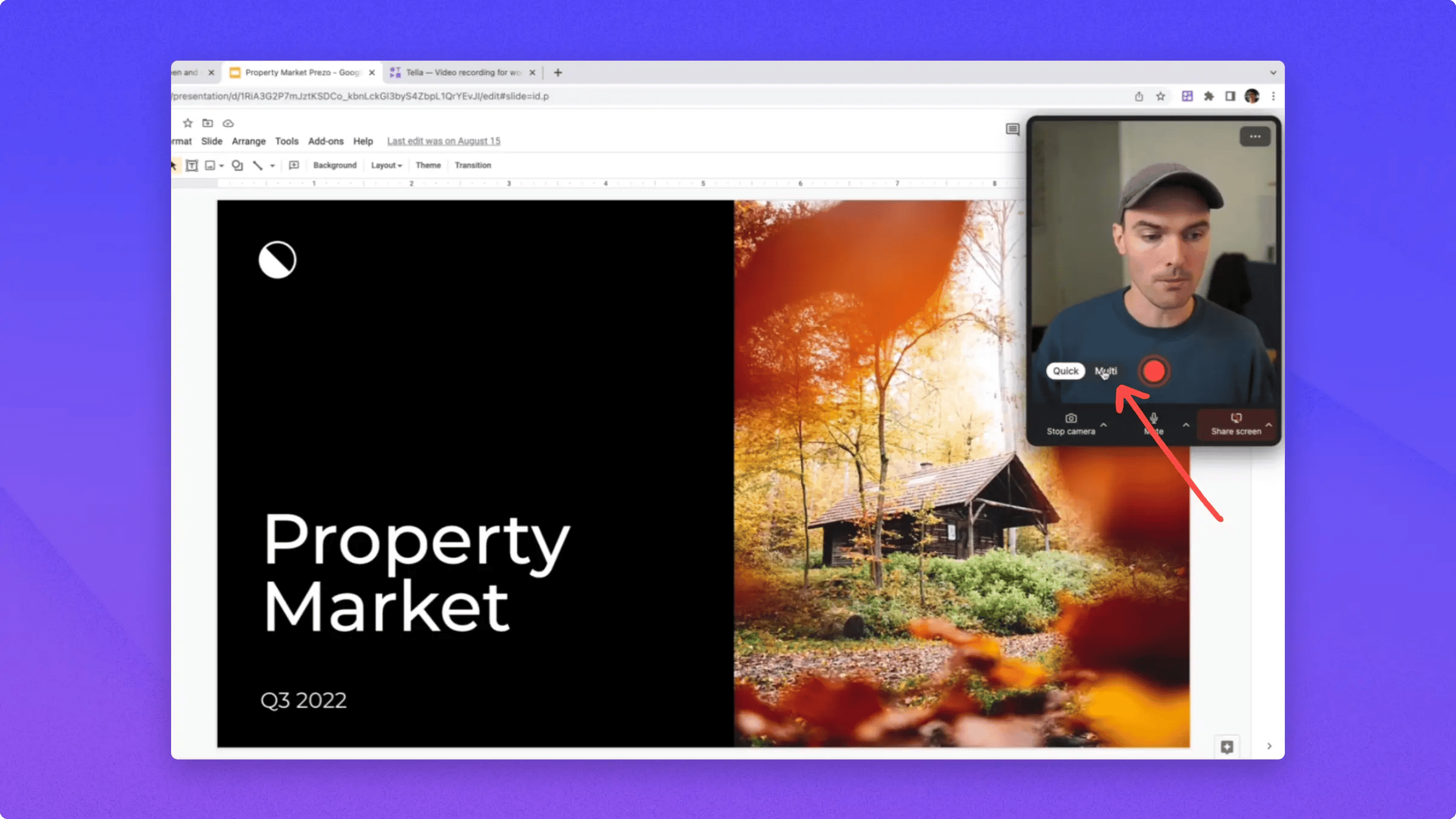
This time, instead of just recording a presentation, you'll record an introduction clip before the presentation.
For that, switch to **multiple clips** and then record an intro clip of just your camera.
## Choose your recording resolution
The camera and screen previews each have a **resolution pill** in the corner. Click the pill to pick the resolution you want to capture at — up to **1080p** for the camera and up to **4K** for the screen.
Camera resolutions that your selected webcam can't produce natively are greyed out in the picker. If you change cameras, the available options update to match what the new camera supports.
## Switch between quick mode and multiple clips
Recording settings live in the extension's **Settings** panel. Click the **…** menu in the top-right corner of the popup and choose **Settings**, then under **Recording mode** pick:
* **Quick** — stop recording and you're taken straight to the view page with the share link already copied. Each recording becomes its own standalone video.
* **Multi-clip** — record several clips back-to-back and combine them into a single video before sharing.
See [record faster with quick mode](/docs/help/recording/record-faster-with-quick-mode) and [use clips](/docs/help/recording/use-clips) for the full walkthroughs.
## Turn the countdown on or off
By default, Tella shows a three-second countdown before recording starts. To skip it, open the **…** menu, choose **Settings**, and turn off **Countdown**. Tella remembers your choice for future recordings.
## Advanced recording
This time, instead of just recording a presentation, you'll record an introduction clip before the presentation.
For that, switch to **multiple clips** and then record an intro clip of just your camera.
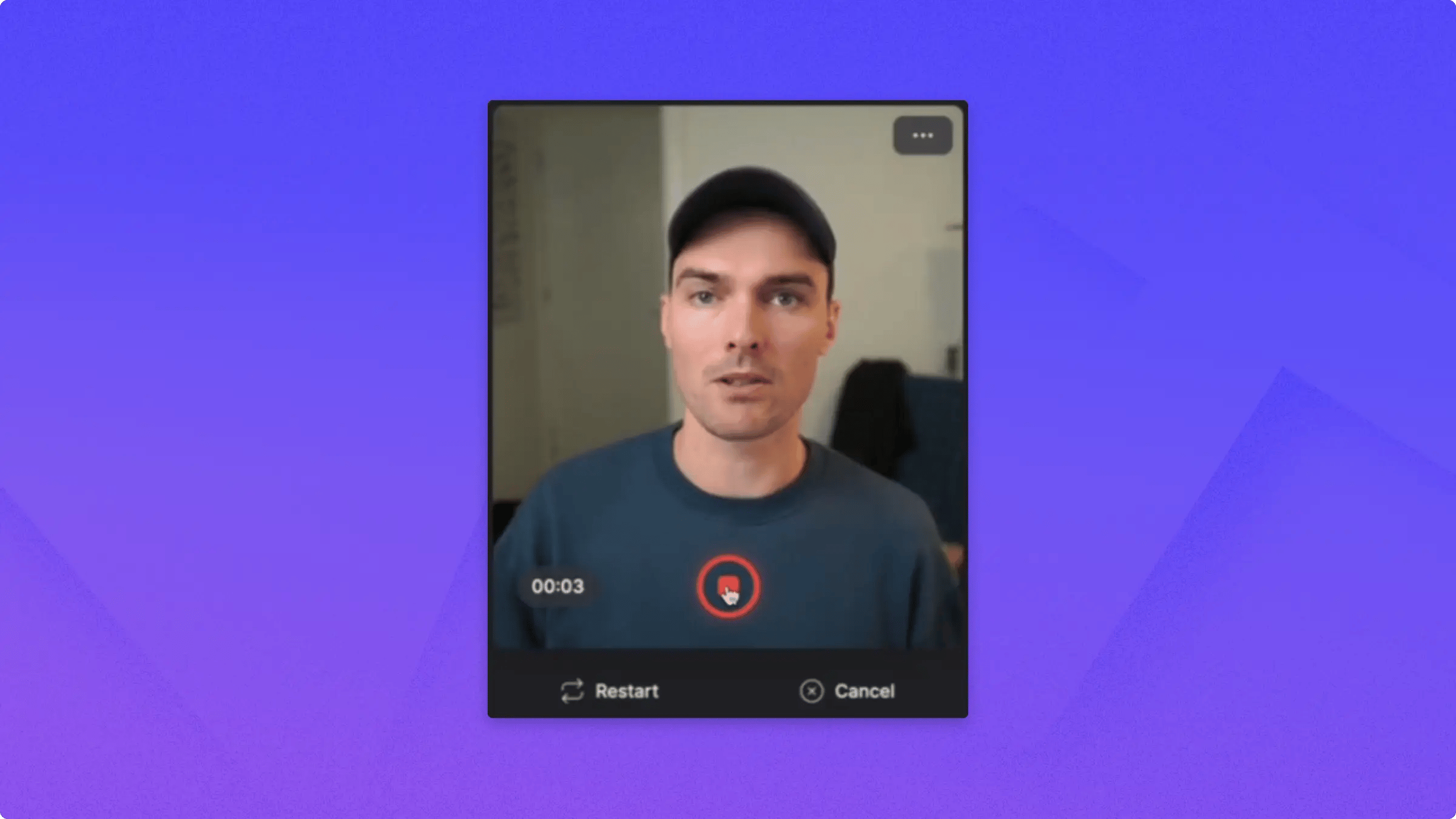
 Here's where you would record your introduction clip where you can explain what's about to be presented in the recording.
Click **Stop** to save the first clip in your video.
Here's where you would record your introduction clip where you can explain what's about to be presented in the recording.
Click **Stop** to save the first clip in your video.
 You can see that indicated by the **one icon** on your screen.
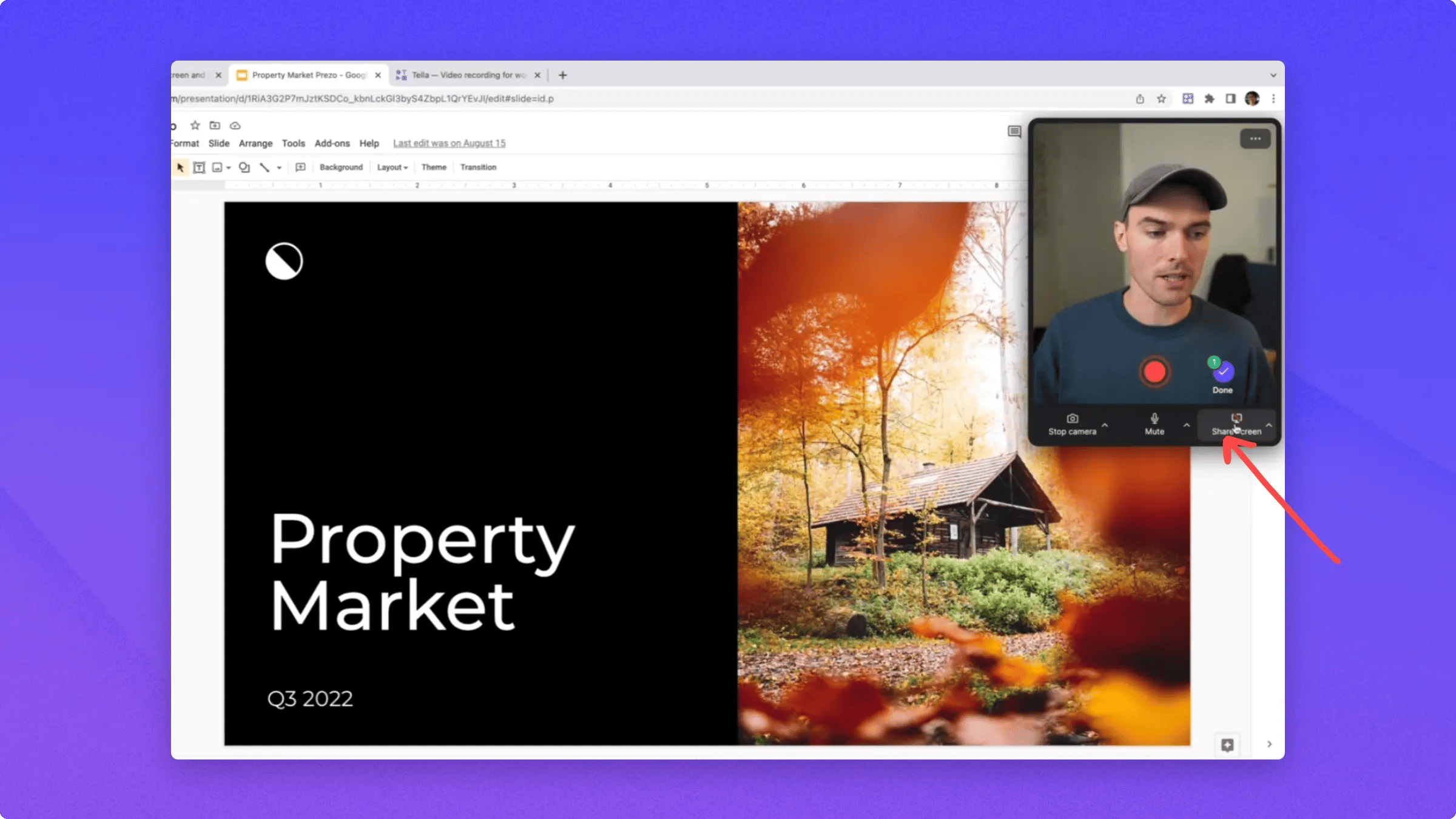
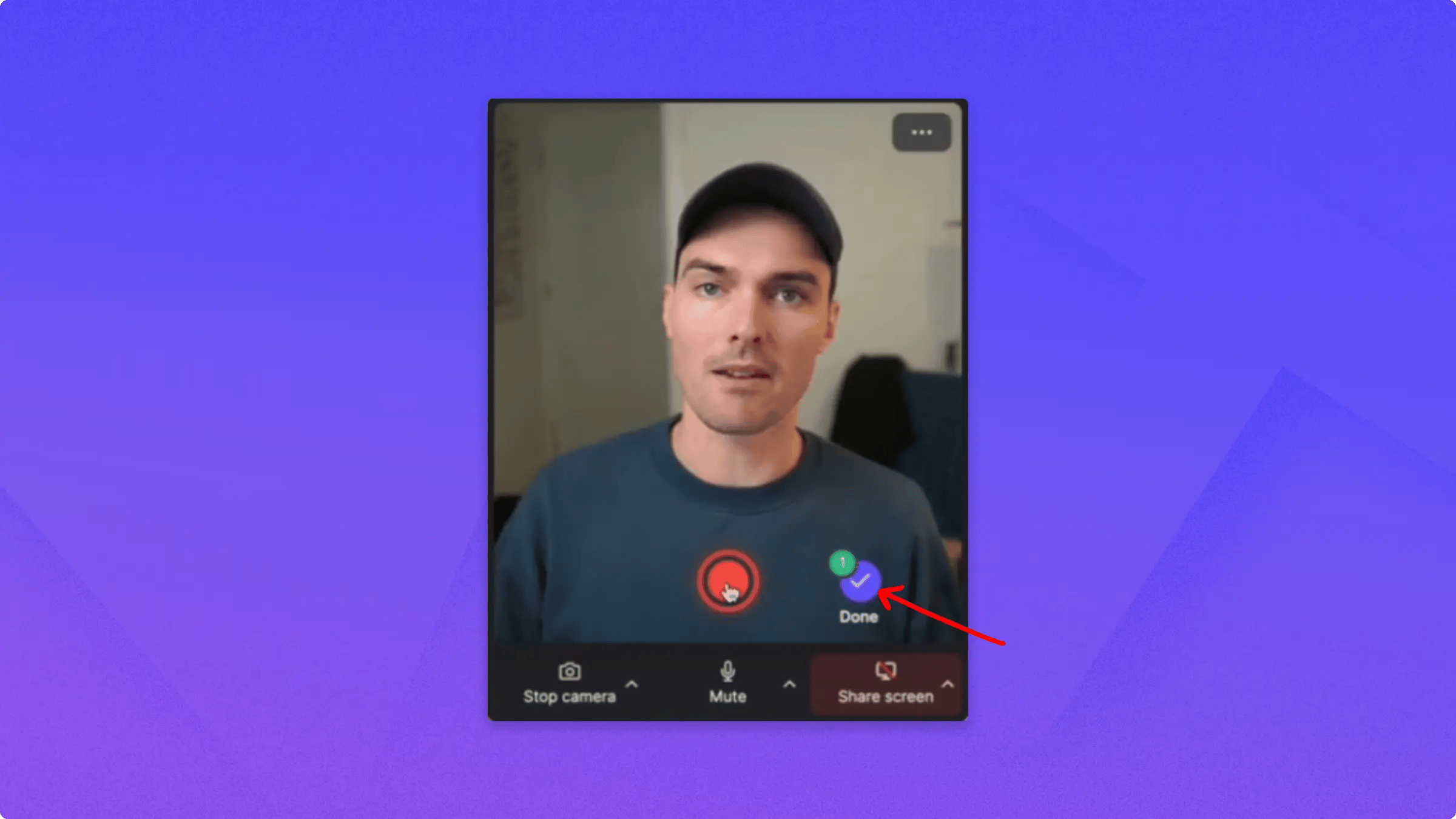 Now click **Share screen** and record your second clip — this time, the **presentation**.
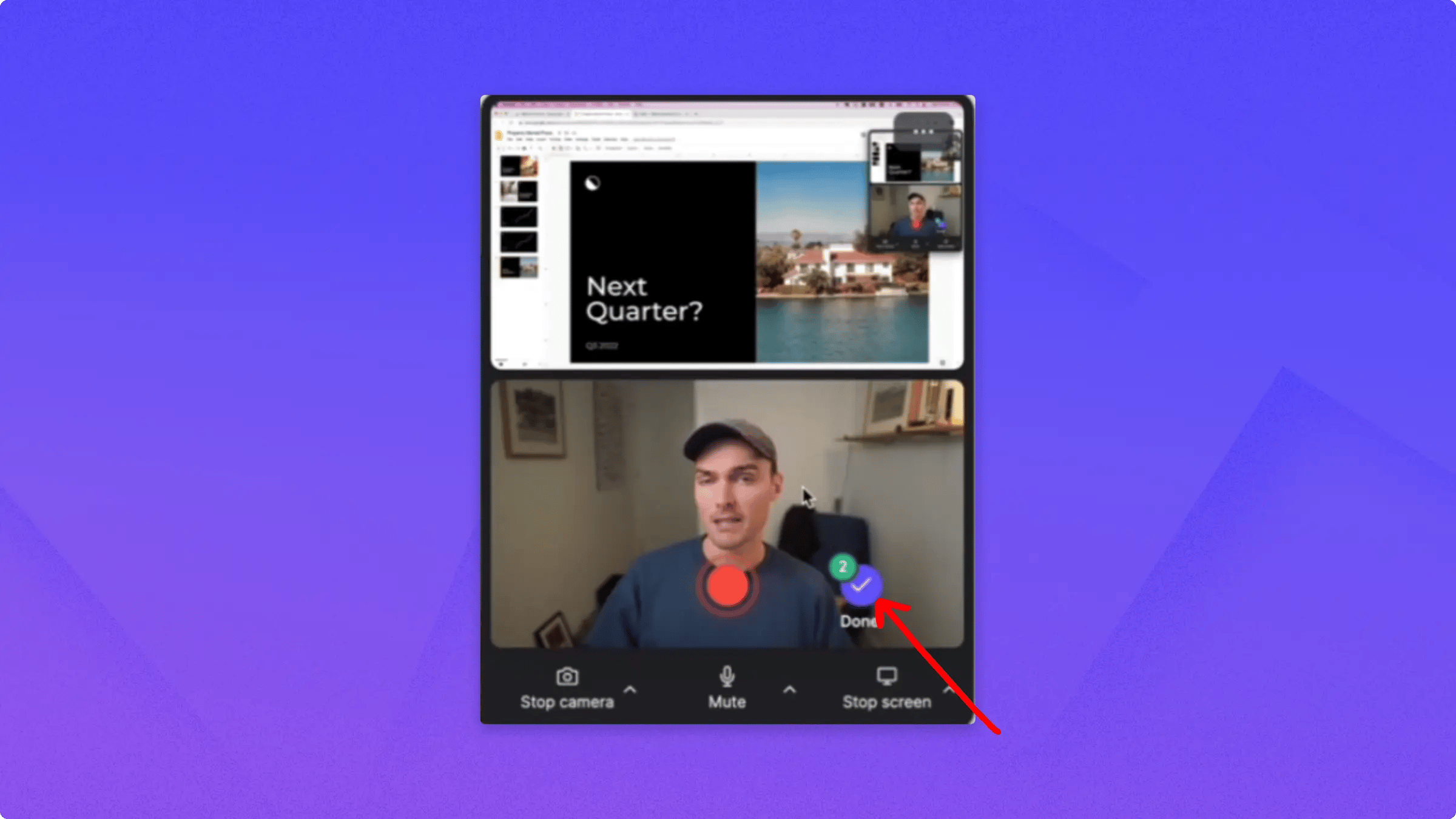
 Once done recording with the second clip, you can see that it's indicated by the **two icon**.
 **Tella on Chrome** lets you record as many clips as you like in a row that will all be combined together in a single video.
When you're ready to edit your clips, click **Done** to see all the clips you recorded in the **Tella editor**.
**Tella on Chrome** lets you record as many clips as you like in a row that will all be combined together in a single video.
When you're ready to edit your clips, click **Done** to see all the clips you recorded in the **Tella editor**.
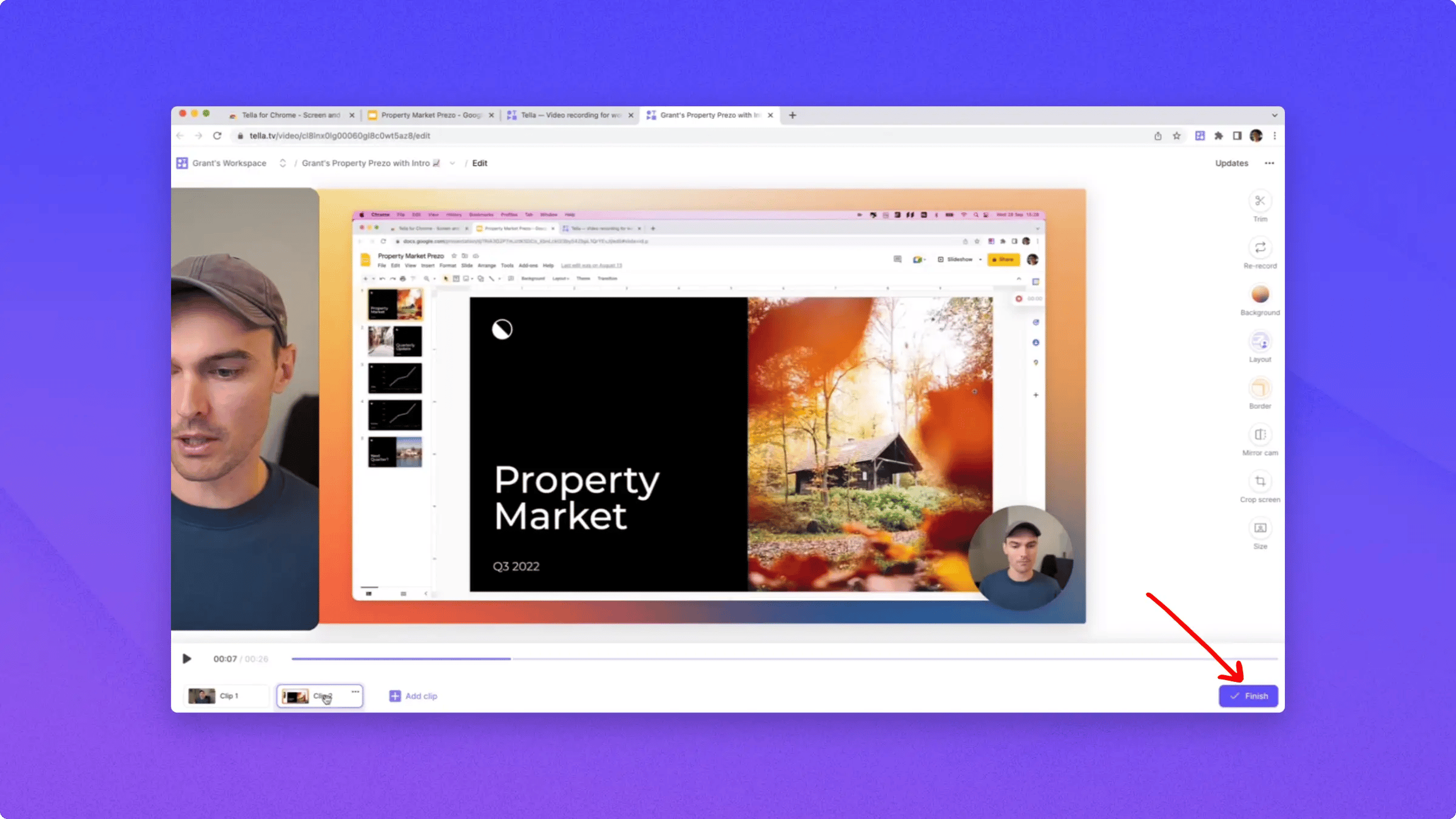 Once you're done editing, click **Finish** to share your video.