> ## Documentation Index
> Fetch the complete documentation index at: https://www.tella.com/docs/llms.txt
> Use this file to discover all available pages before exploring further.
# Embed Tella videos in Framer
If you have a website in **Framer**, there are a couple of ways to embed video from **Tella**.
For example, you can embed it inline, which means the Tella video loads directly on your webpage.
To do that, you need the **Insert** and **Embed** components.
First, click **Insert**.
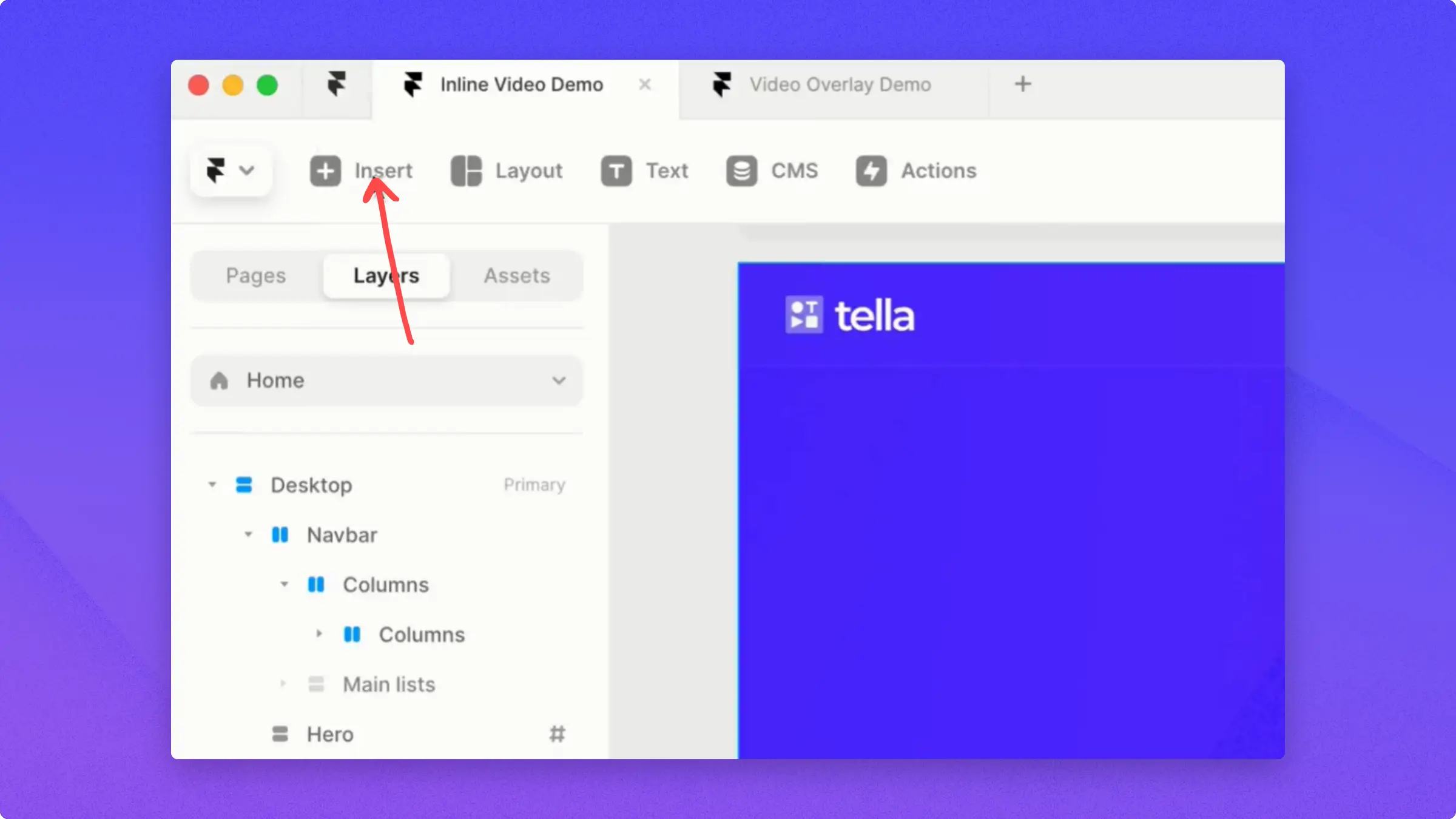 Then **Utility.**
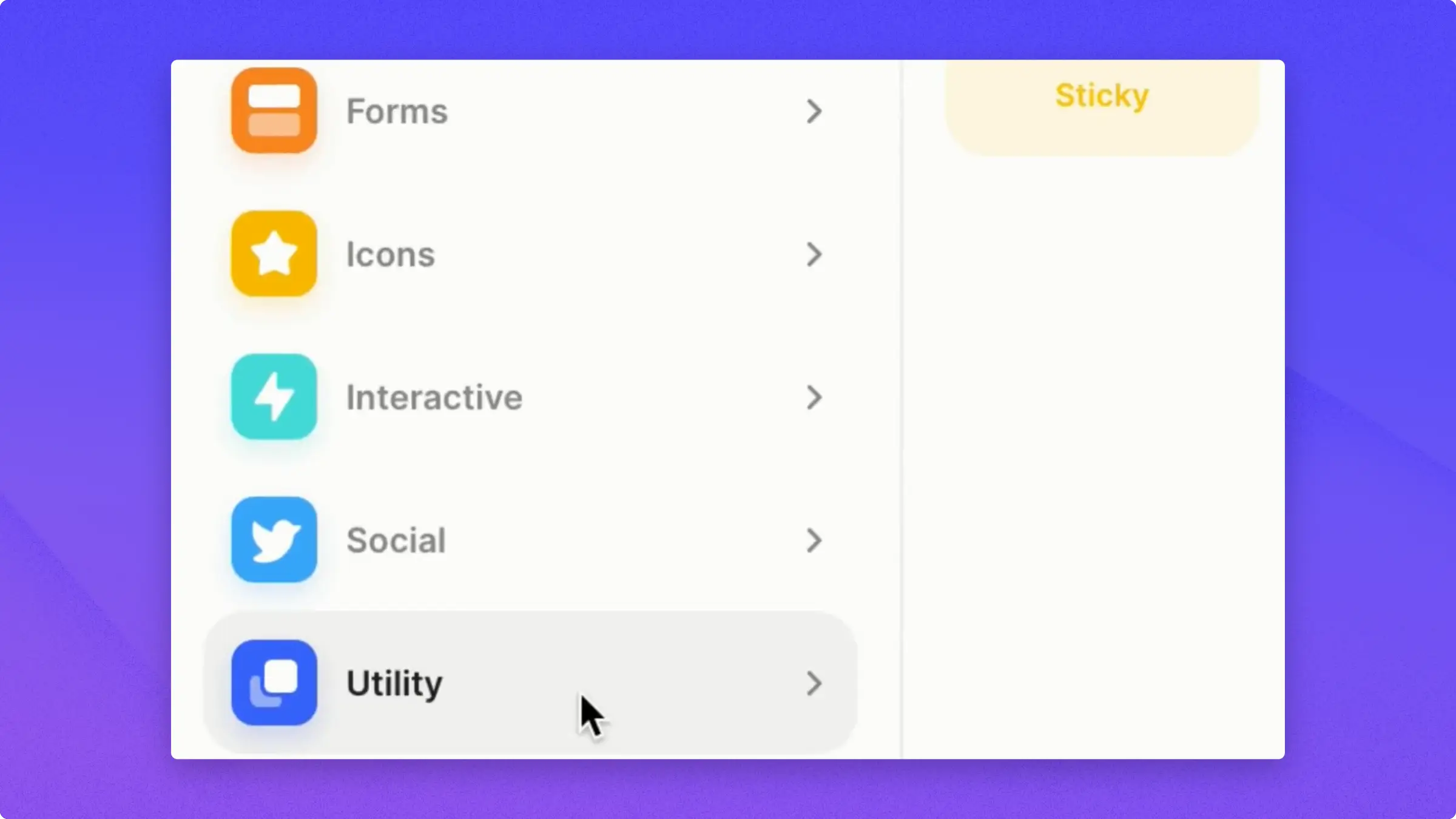 And go to **Embed**.
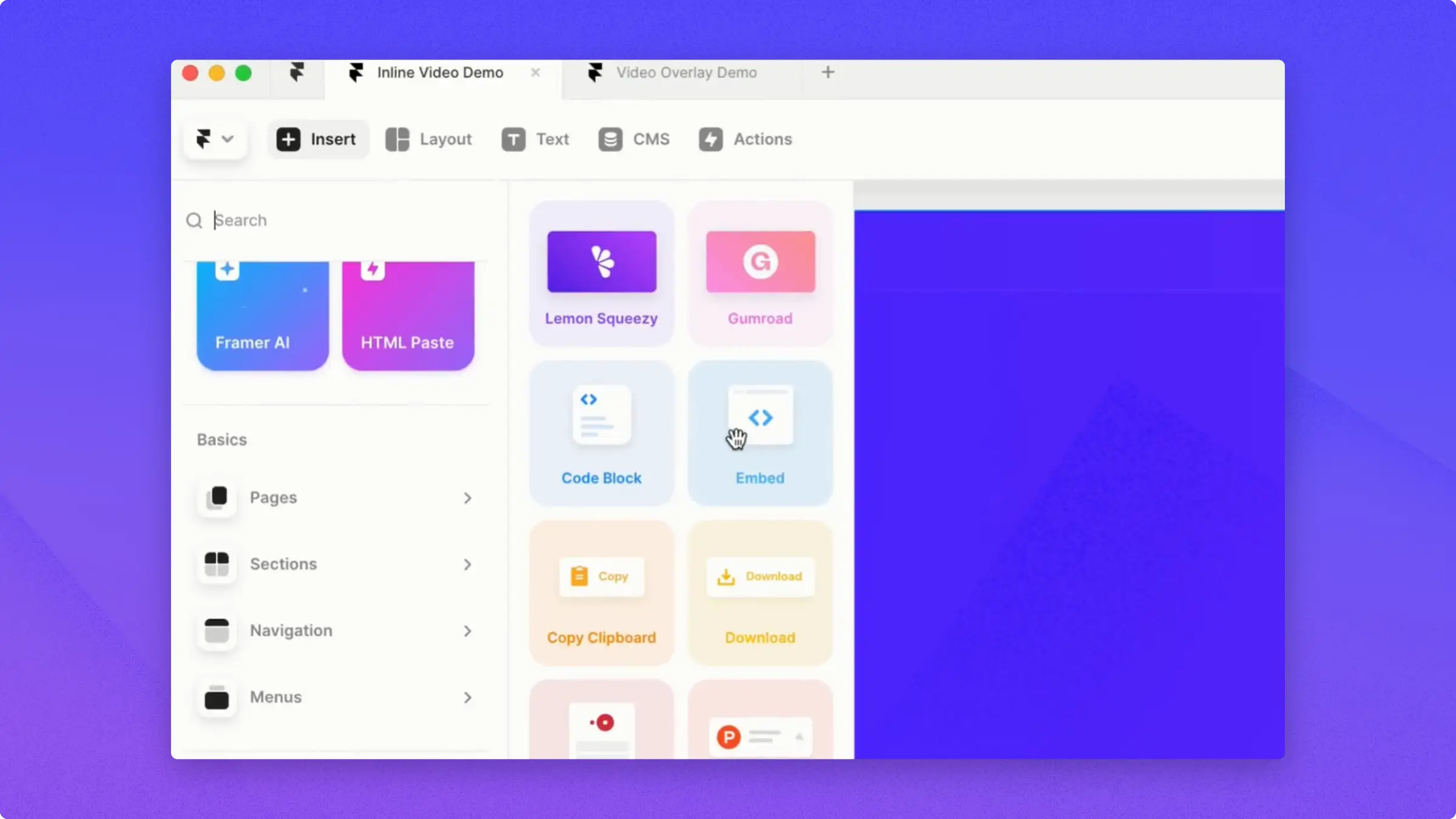 Drag the **Embed** icon to the center and you will see a little placeholder.
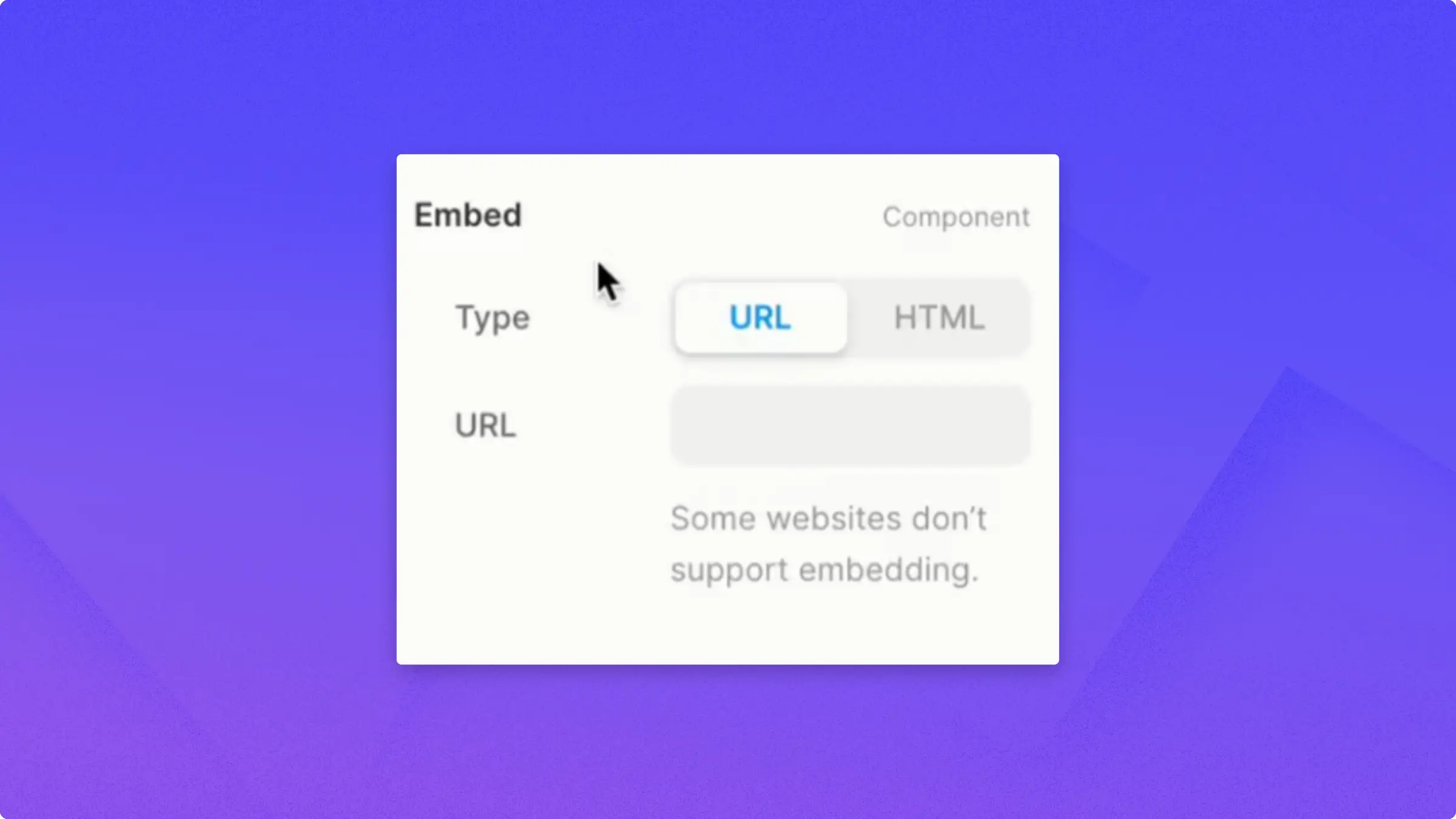
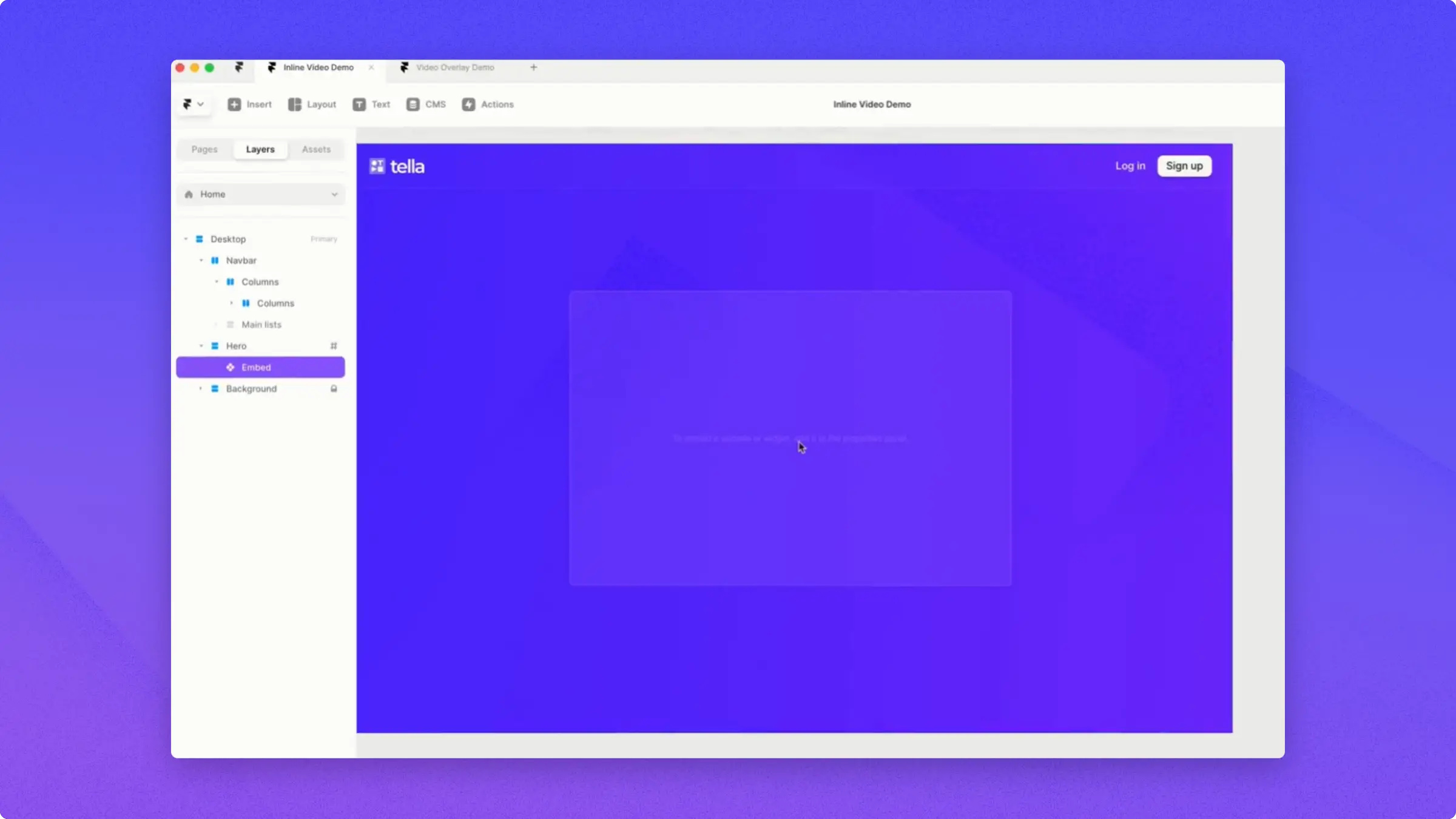 Select the placeholder and on the right side, you have the **Embed Options**.
You have two options: **URL** and **HTML**.
Select the placeholder and on the right side, you have the **Embed Options**.
You have two options: **URL** and **HTML**.
 ## URL option
For the URL option, head to Tella and select a video that you want to embed.
Copy the link from the address bar.
## URL option
For the URL option, head to Tella and select a video that you want to embed.
Copy the link from the address bar.
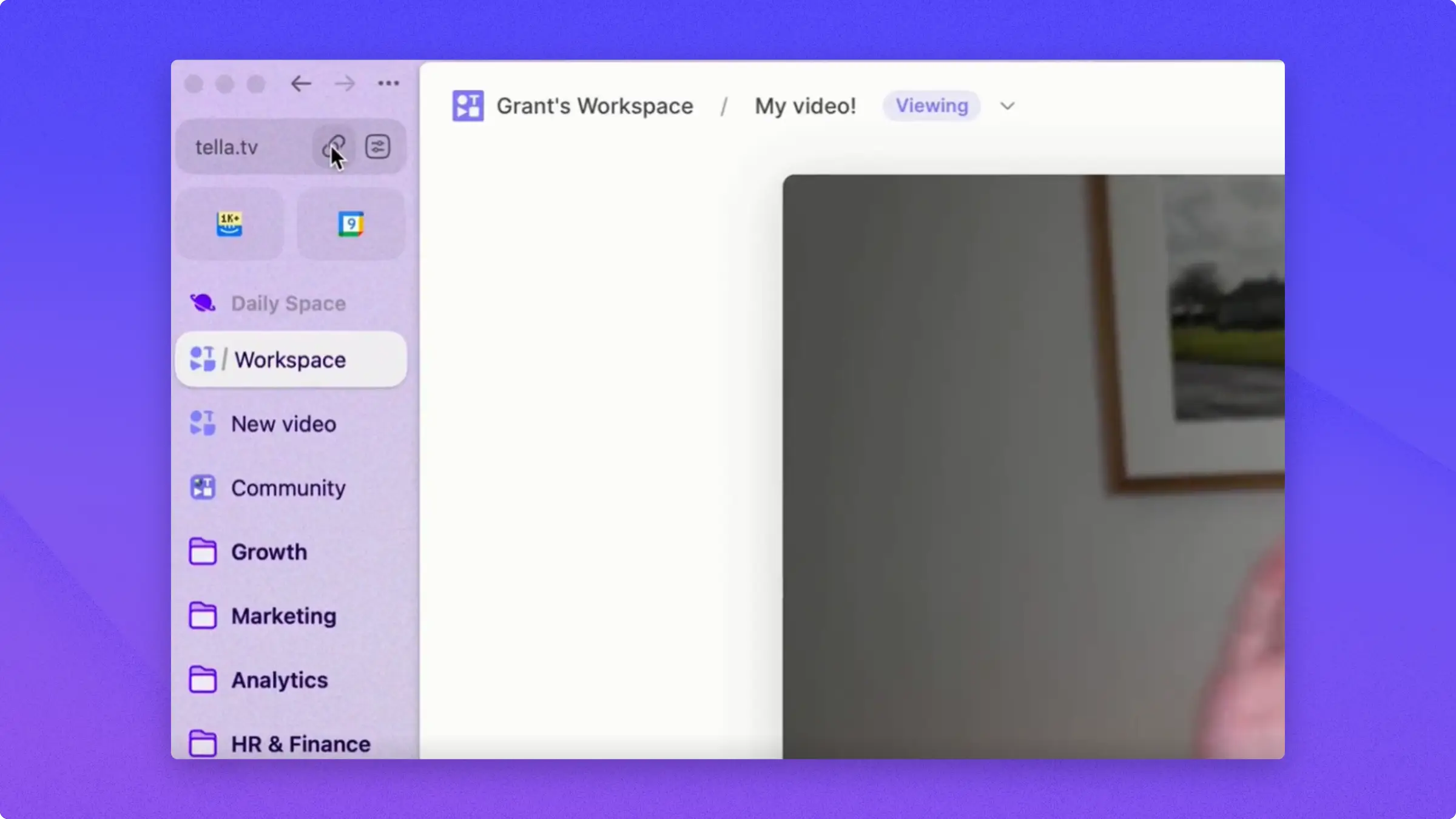 Switch back to Framer and paste it into the **URL** spot.
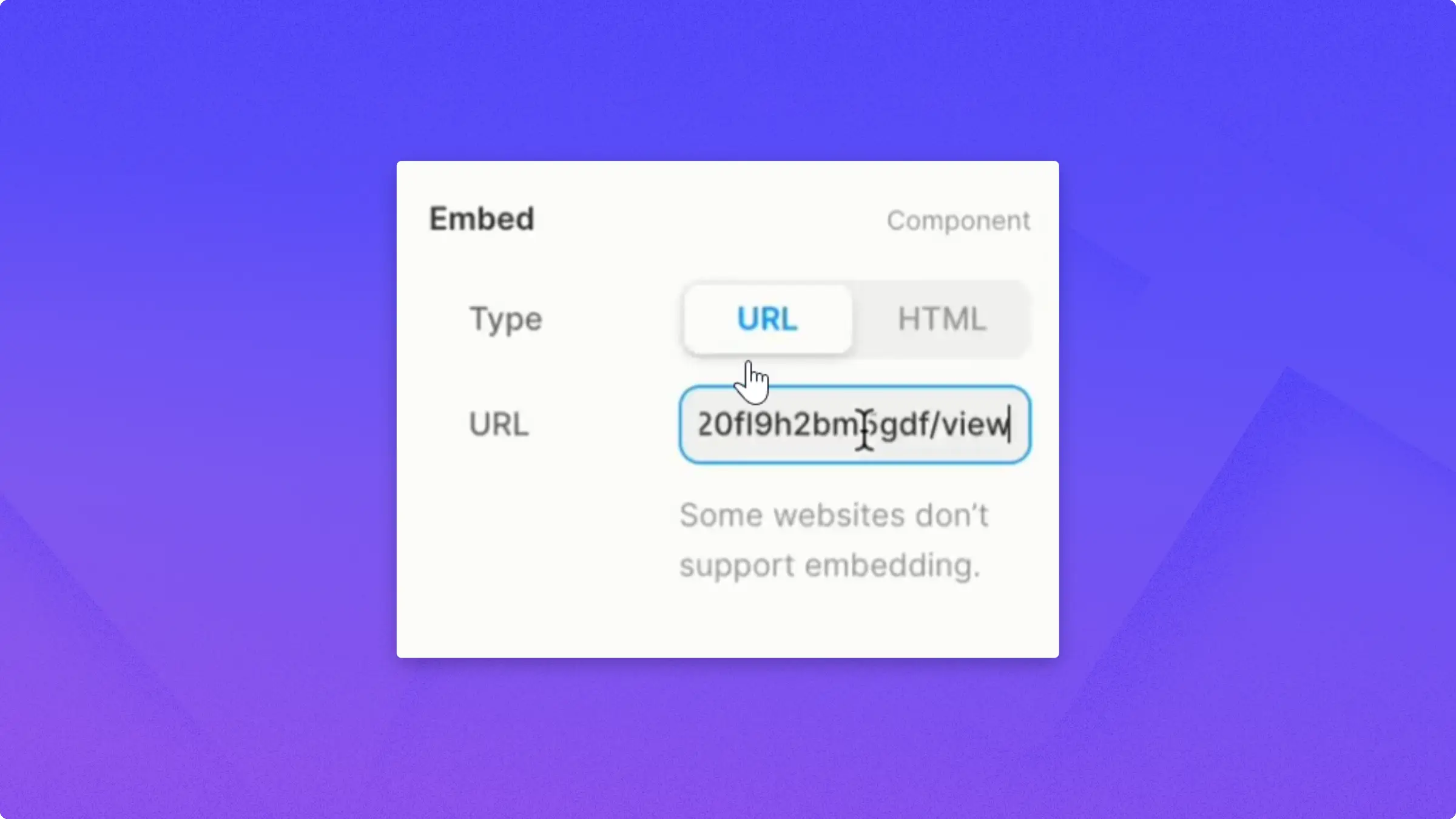 After pasting, replace the word "**view**" with "**embed**".
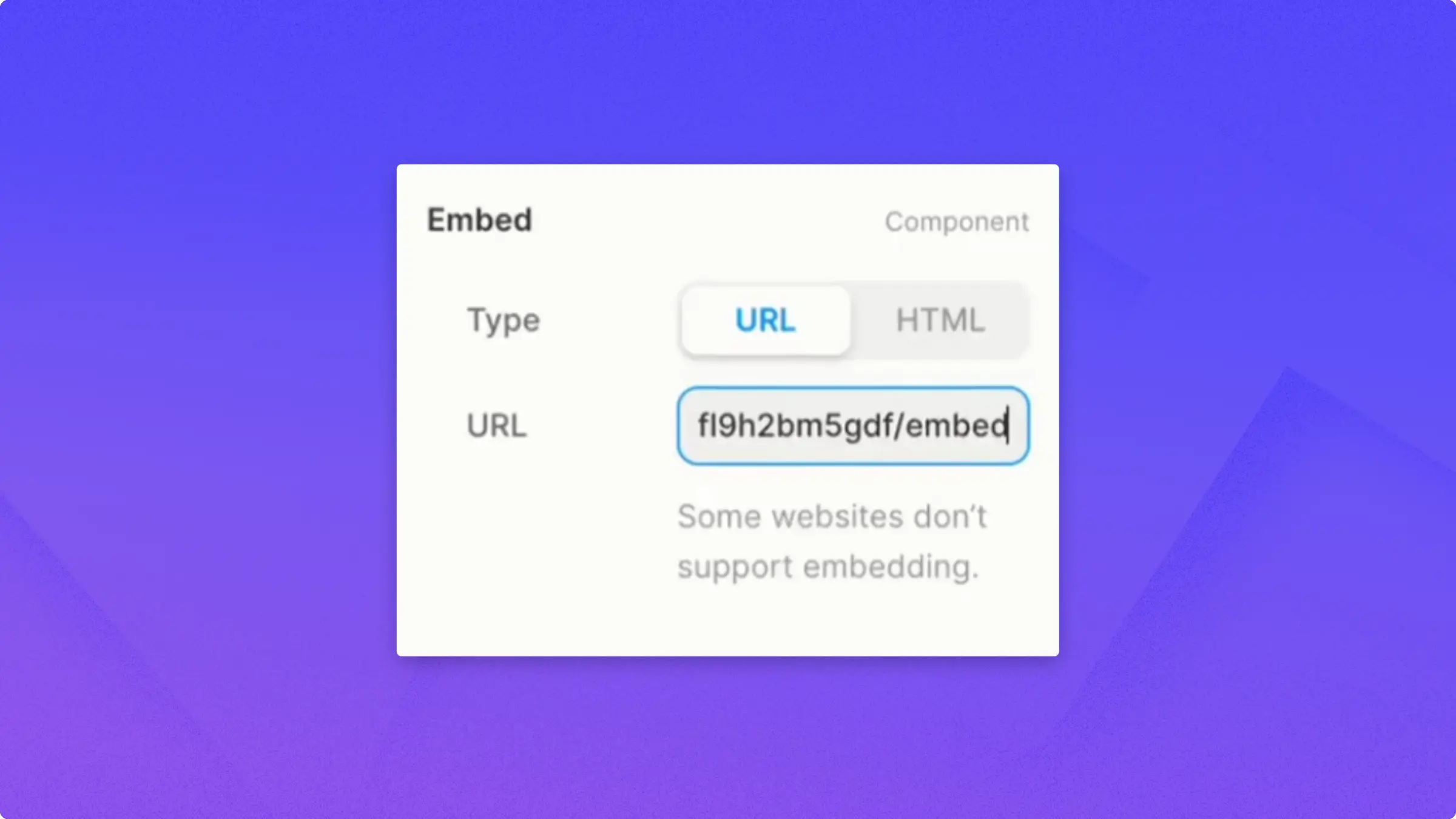 And now you can see that the video is showing up.
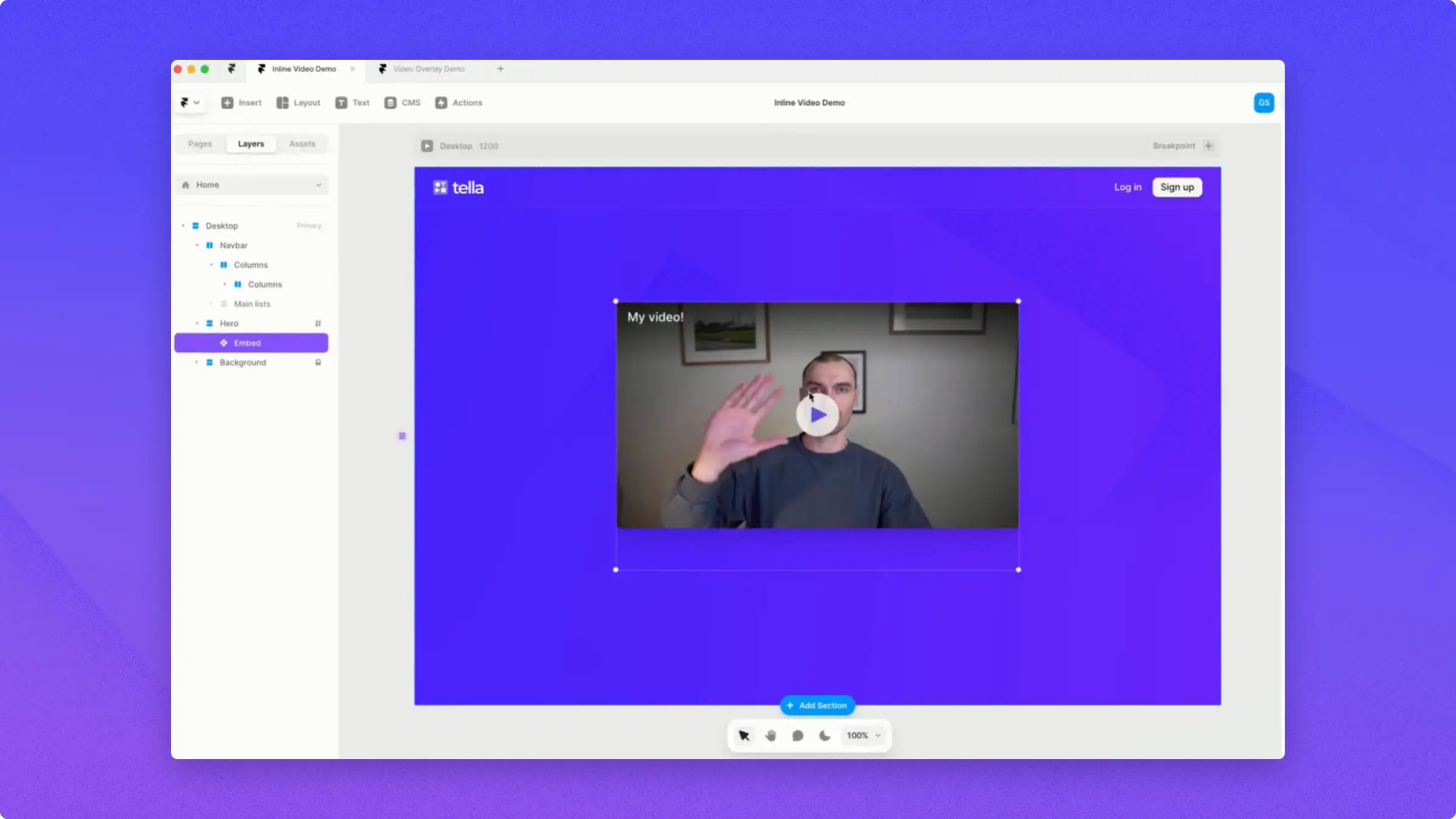 You can also adjust the size of the embedded component to your liking.
## HTML Option
If you want to modify the videos you want to embed, like removing the **Avatar Name** and **Record your own** button, all you need to do is to use the HTML option.
You can also adjust the size of the embedded component to your liking.
## HTML Option
If you want to modify the videos you want to embed, like removing the **Avatar Name** and **Record your own** button, all you need to do is to use the HTML option.
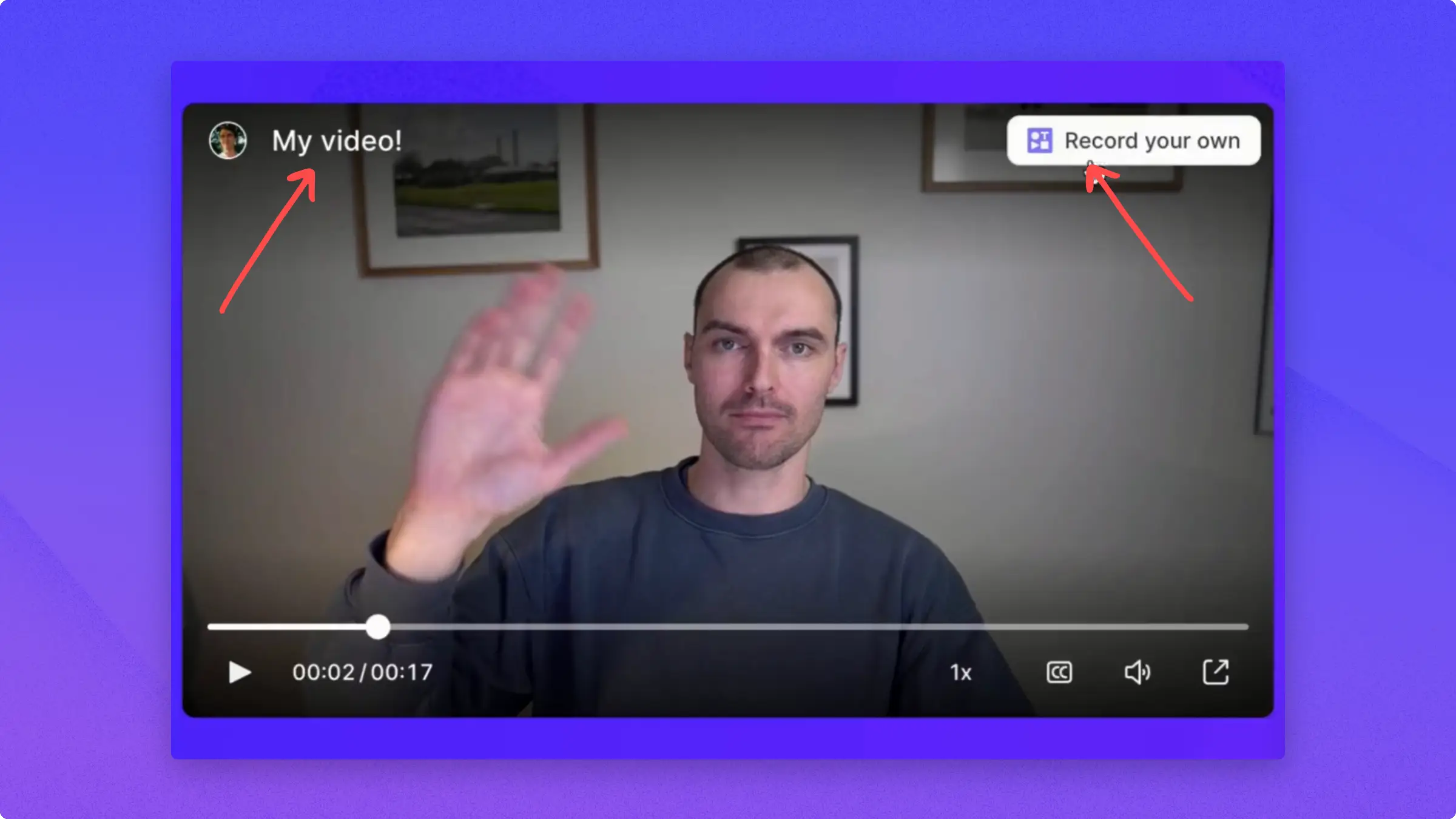 Go back to Tella and click the **share icon** to open the **Embed settings**.
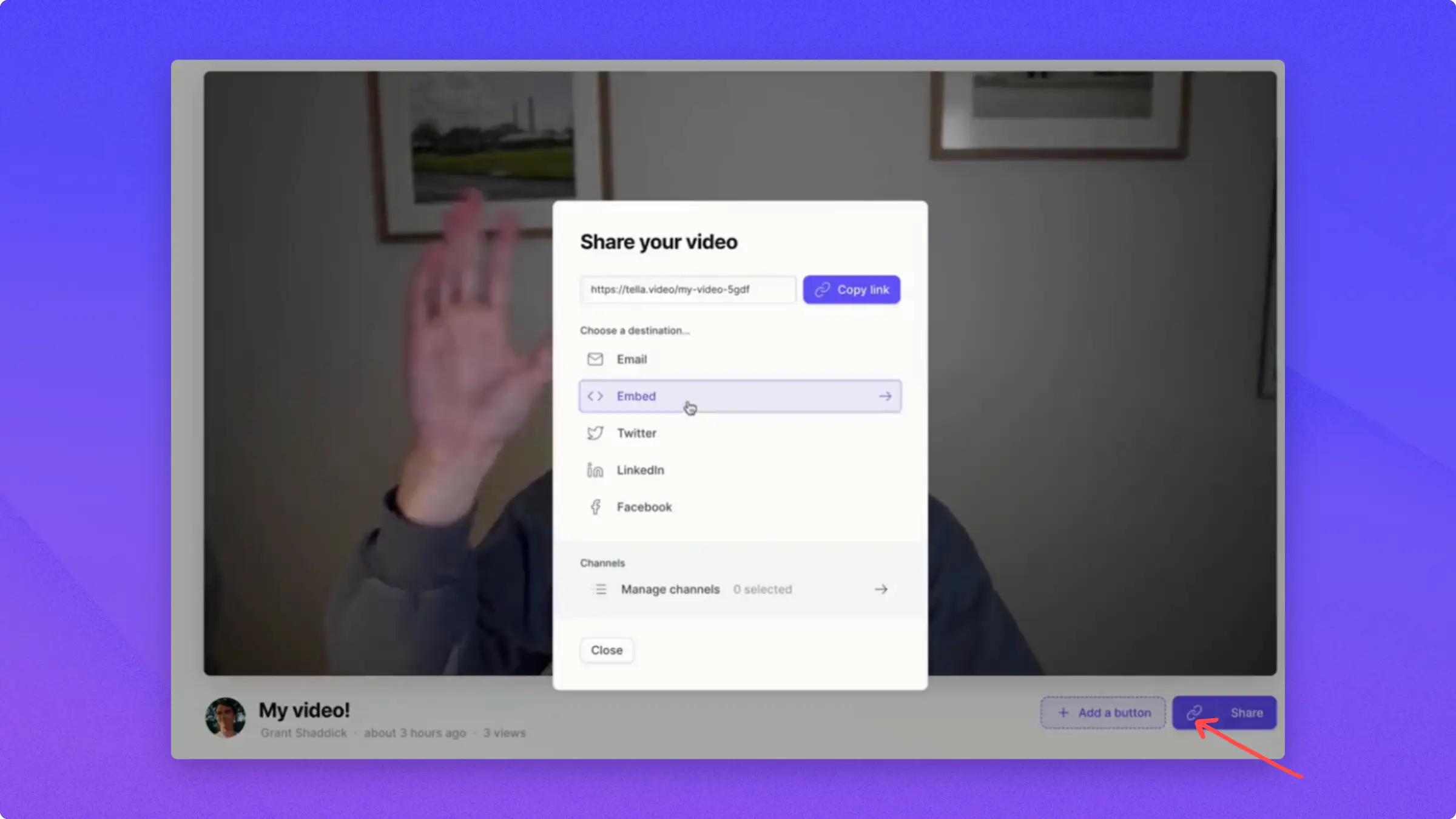 Here you can see options that you can toggle on and off when you use the embed code.
When you just grab the URL, these things don't apply but when you get the full iframe, you can set all these properties.
Here you can see options that you can toggle on and off when you use the embed code.
When you just grab the URL, these things don't apply but when you get the full iframe, you can set all these properties.
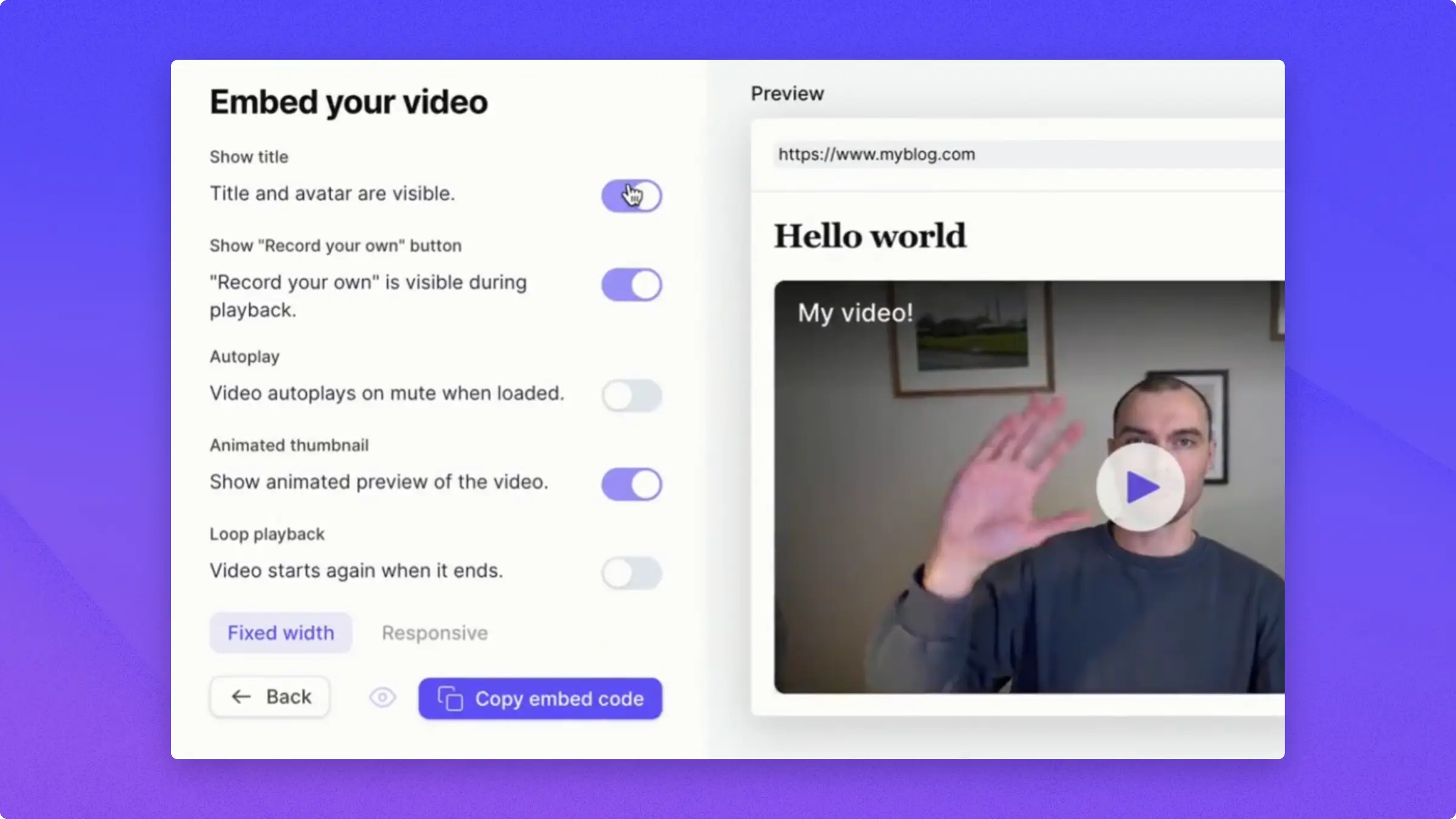 Once you've toggled the desired properties, preview the **iframe** using the **eye icon** to see all the details, then **copy the embed code.**
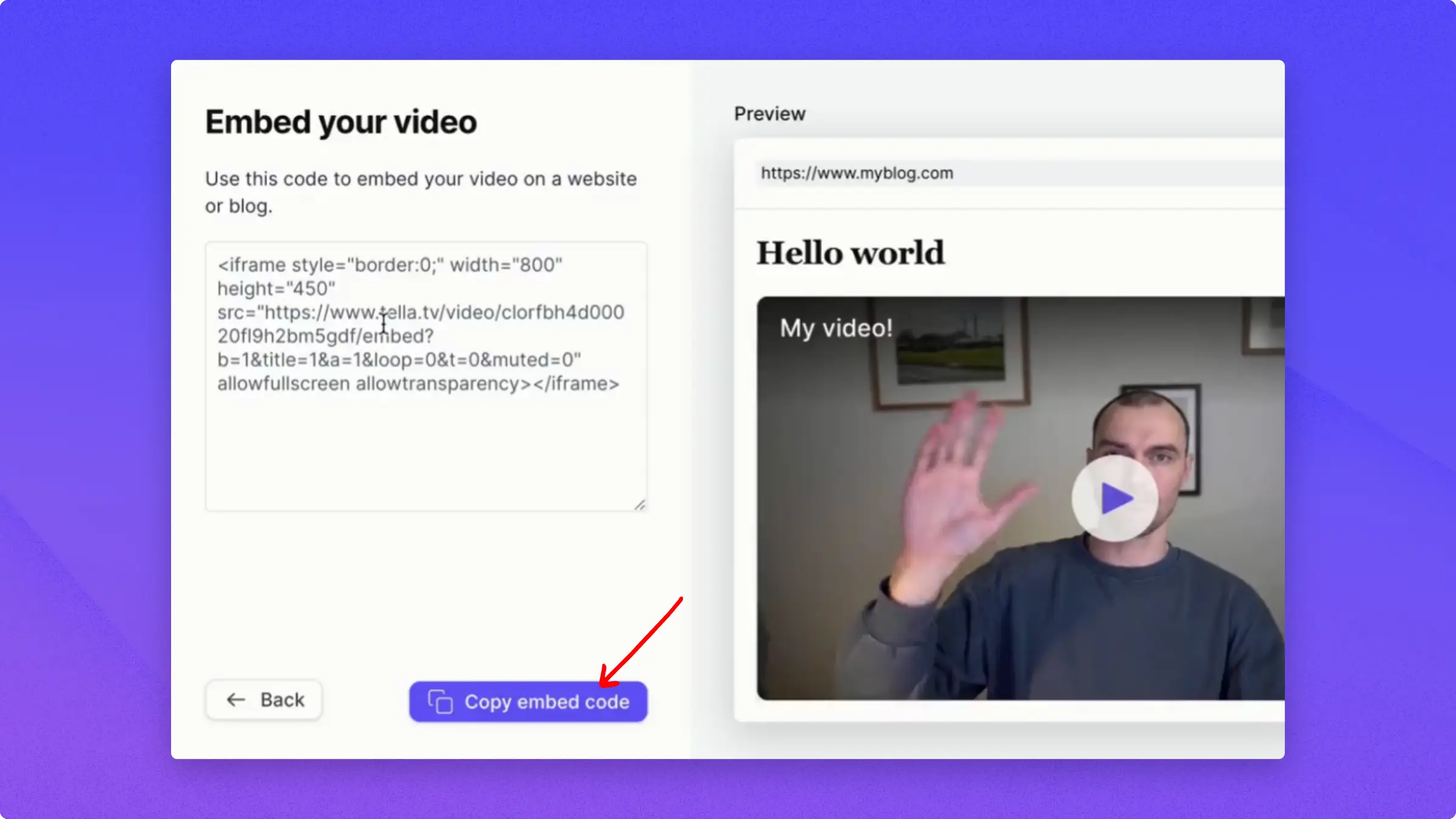 Go back to **Framer** and paste the embed code in the **HTML spot**. You'll see your video with the changes you made.
## Overlay feature
Sometimes, you want more control over the video and how it looks and works on your webpage. However, sometimes, it's just not possible to directly embed an iframe in the part of the page you want to have a video.
That's where Framer's **overlay feature** can help.
In this example, the play button has an animated hover state that viewers can click.
Go back to **Framer** and paste the embed code in the **HTML spot**. You'll see your video with the changes you made.
## Overlay feature
Sometimes, you want more control over the video and how it looks and works on your webpage. However, sometimes, it's just not possible to directly embed an iframe in the part of the page you want to have a video.
That's where Framer's **overlay feature** can help.
In this example, the play button has an animated hover state that viewers can click.
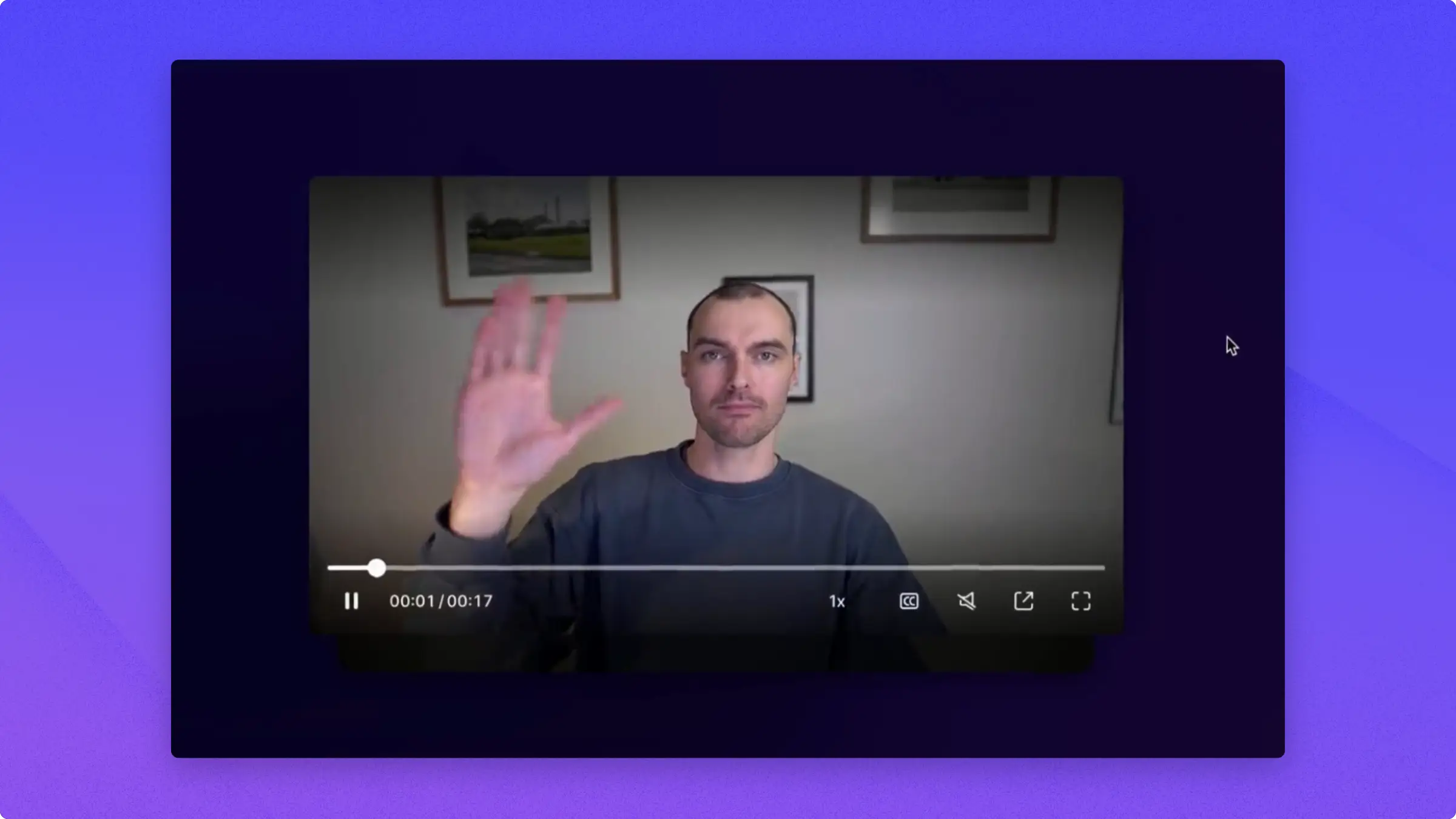
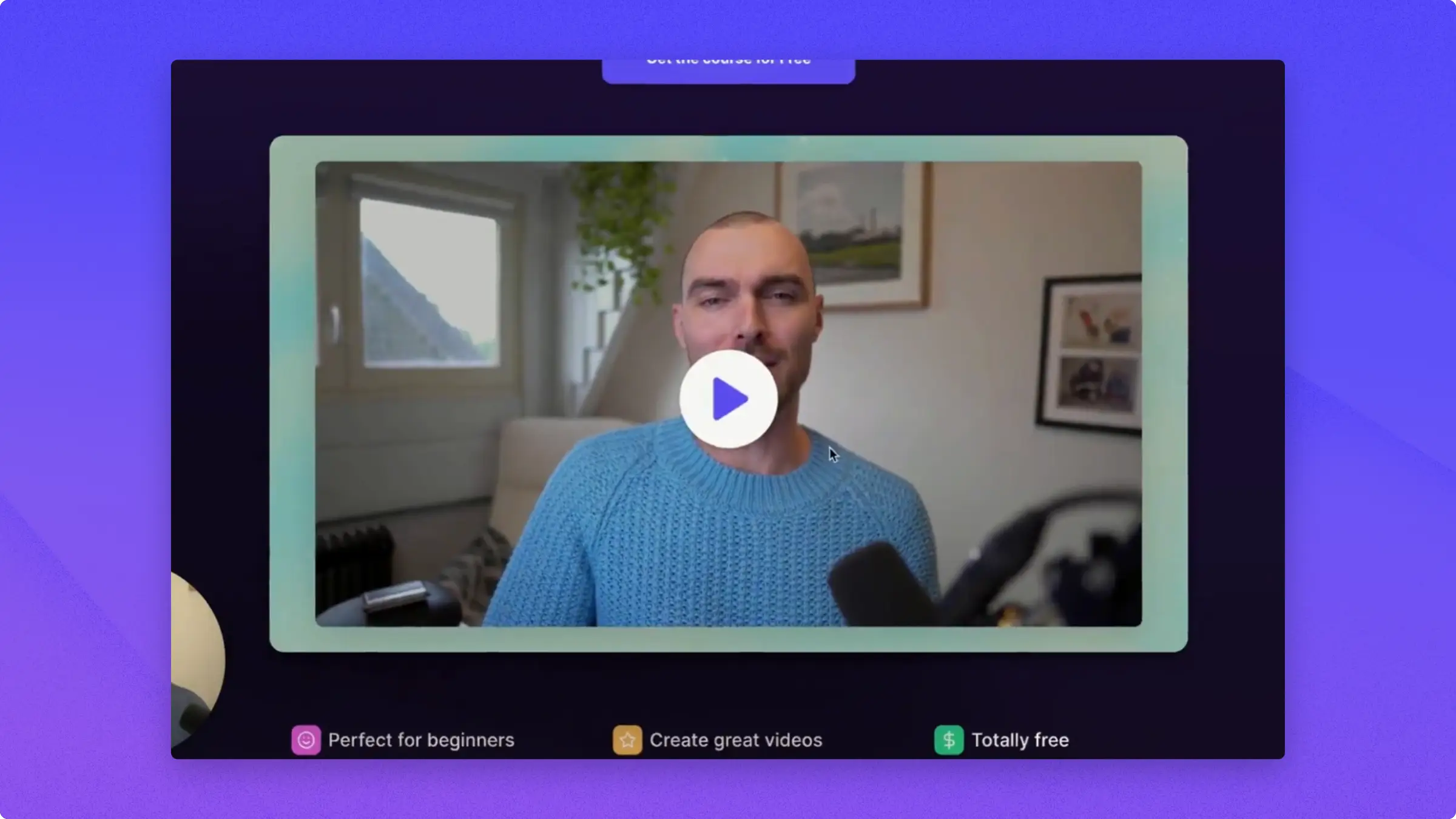 And once clicked, the video auto-plays in an overlay.
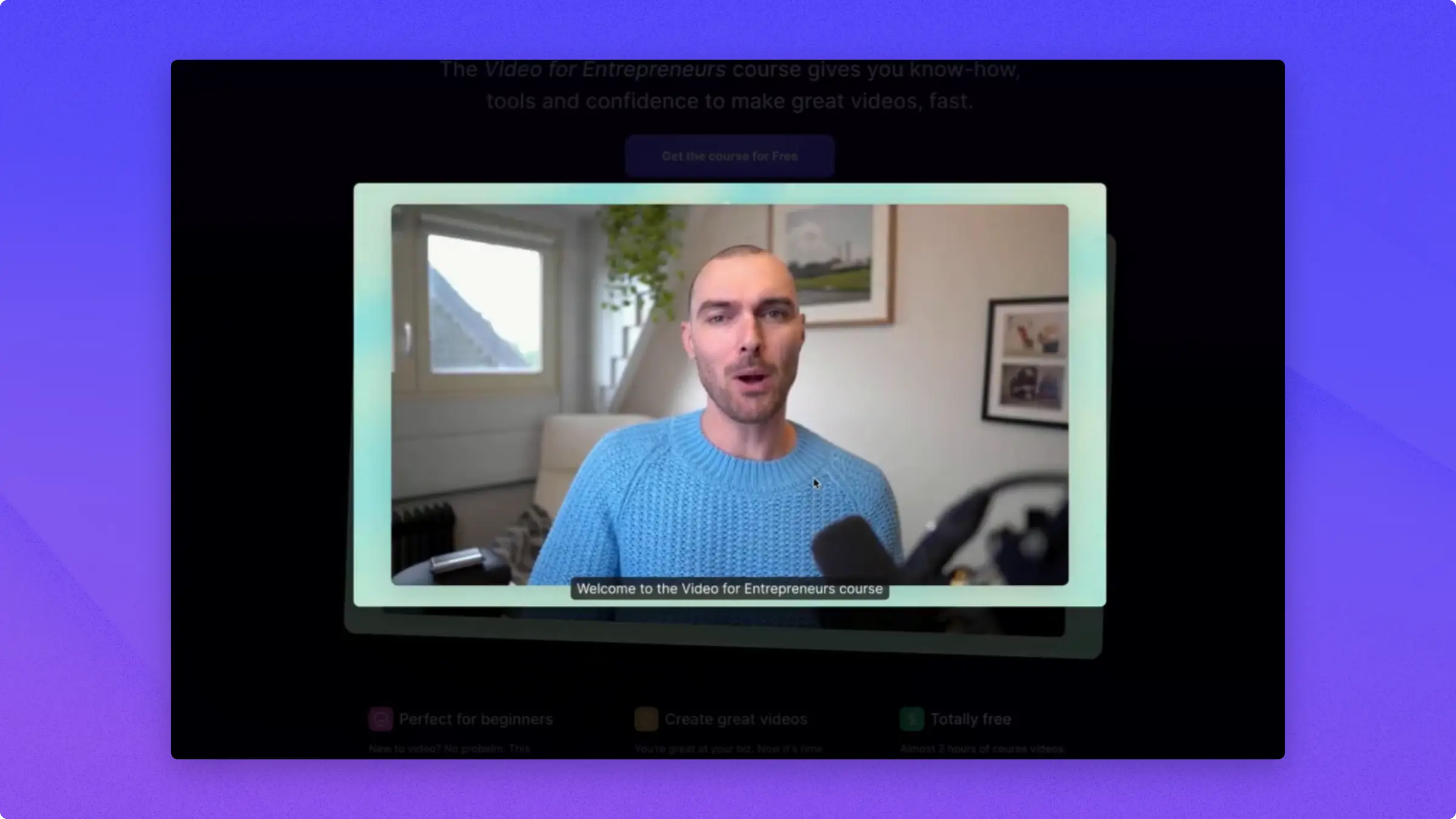 Overlays separate the playback experience from the preview, which can grab attention.
You can also compress the preview file for faster load times, since it doesn't need to load a full iframe.
When you have your video that is not an embedded component, you can add it on the **Insert menu**, **media,** and then **video**.
Overlays separate the playback experience from the preview, which can grab attention.
You can also compress the preview file for faster load times, since it doesn't need to load a full iframe.
When you have your video that is not an embedded component, you can add it on the **Insert menu**, **media,** and then **video**.
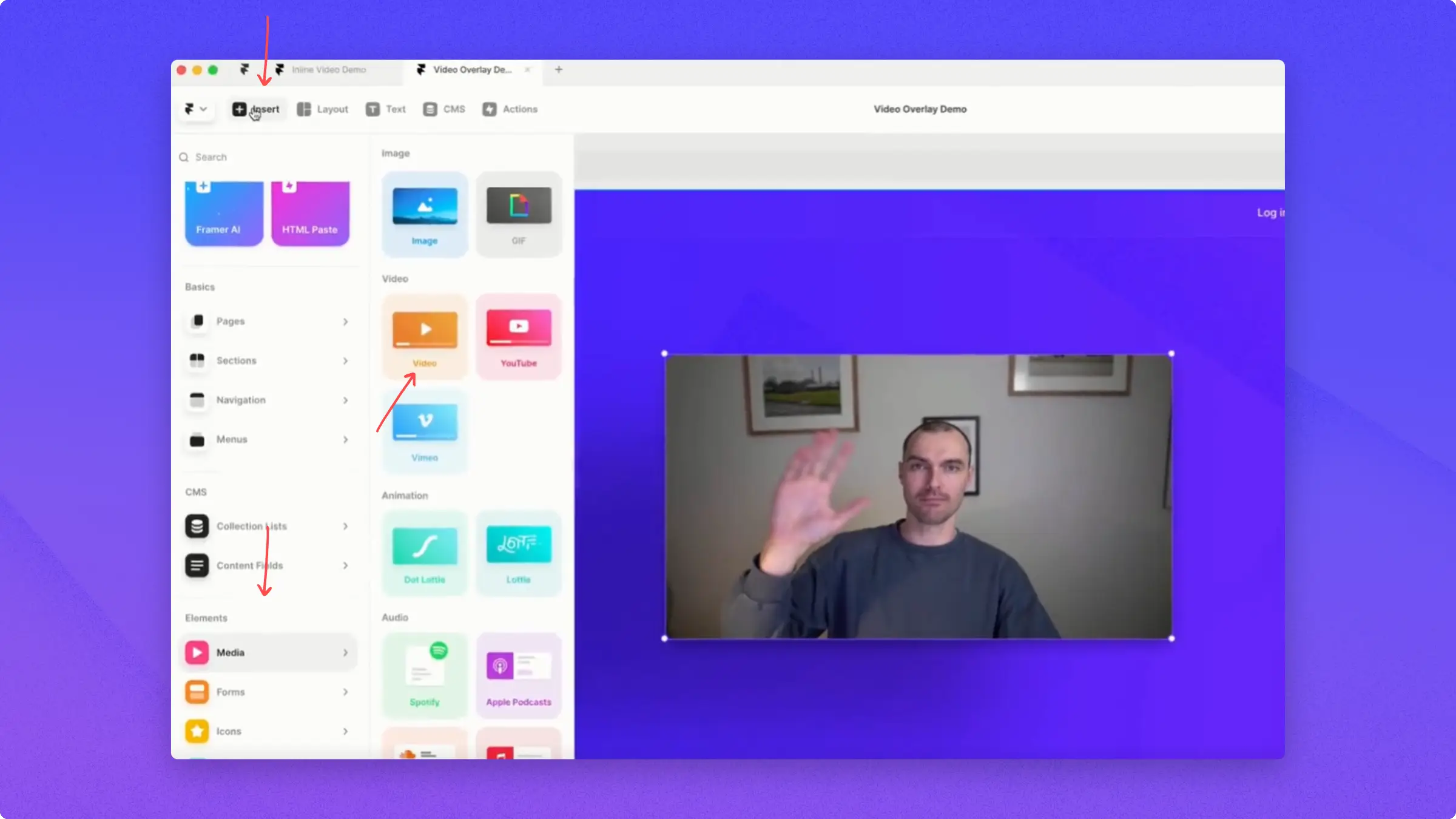 Once added, you can adjust the properties to create a polished preview effect.
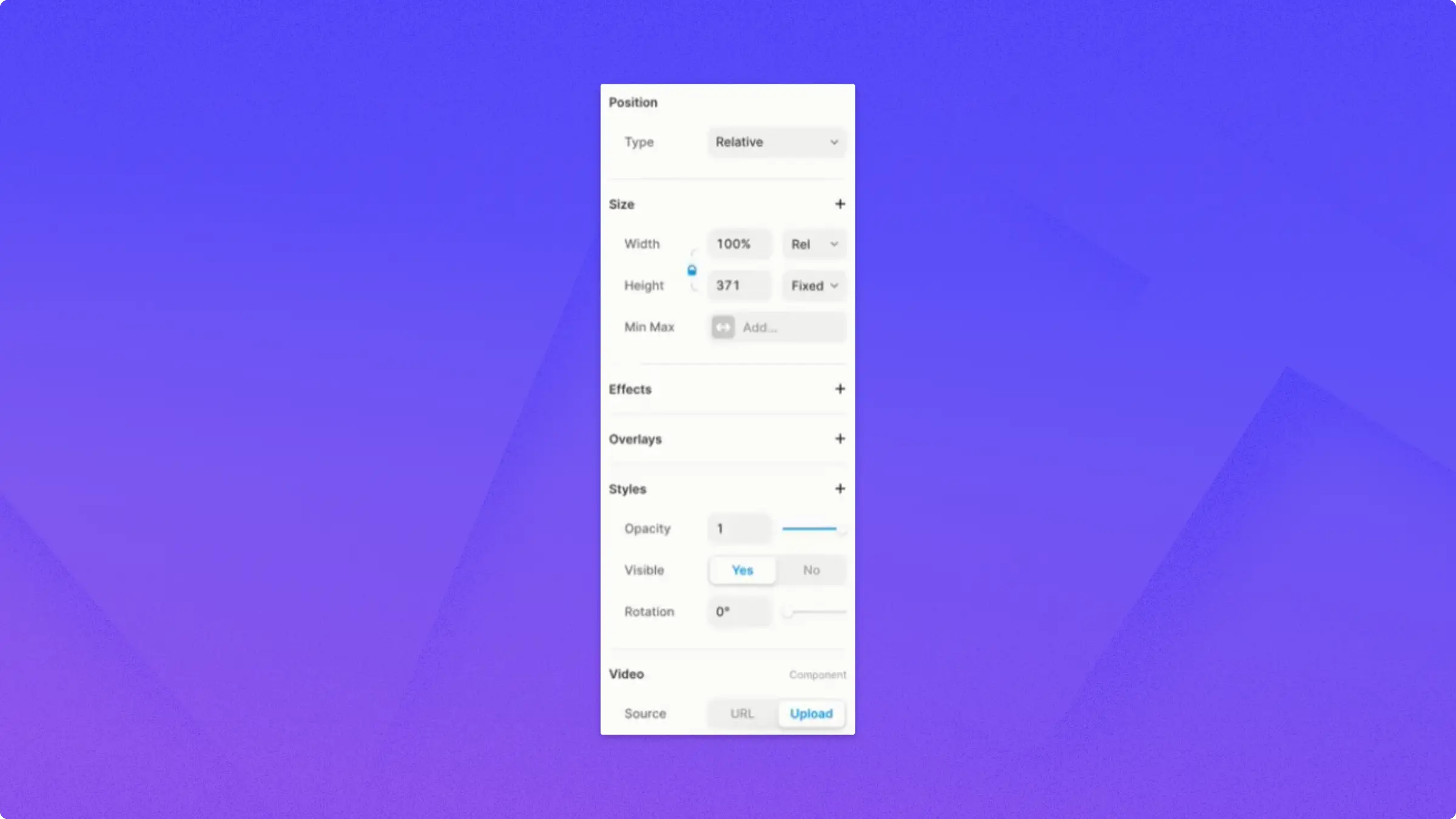 You can set it to autoplay, loop, mute, or hide the controls depending on the output that you want.
To add the overlay, click Overlay and select the Fixed option.
You can set it to autoplay, loop, mute, or hide the controls depending on the output that you want.
To add the overlay, click Overlay and select the Fixed option.
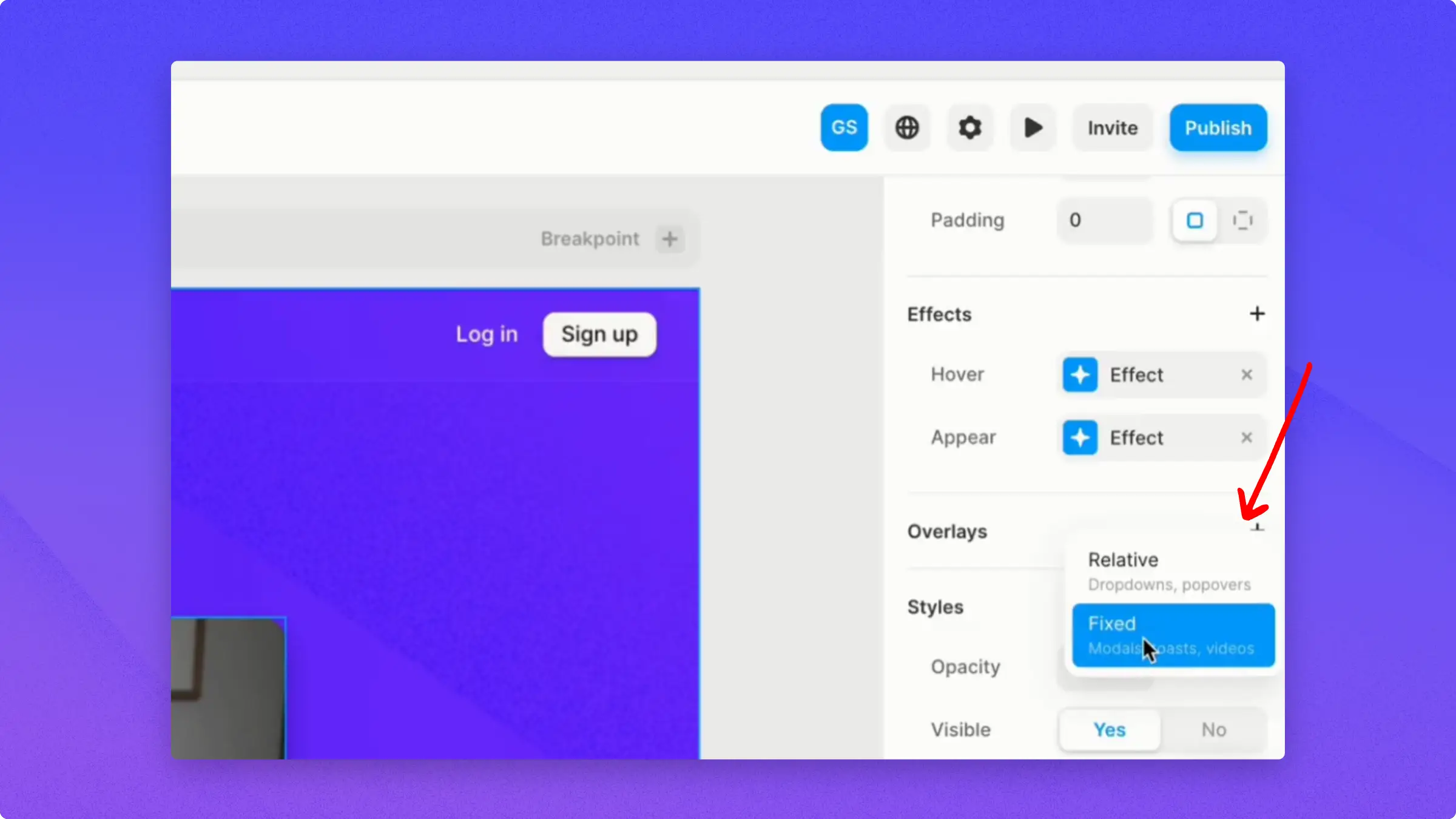 It will add an overlay behind the video and the menu.
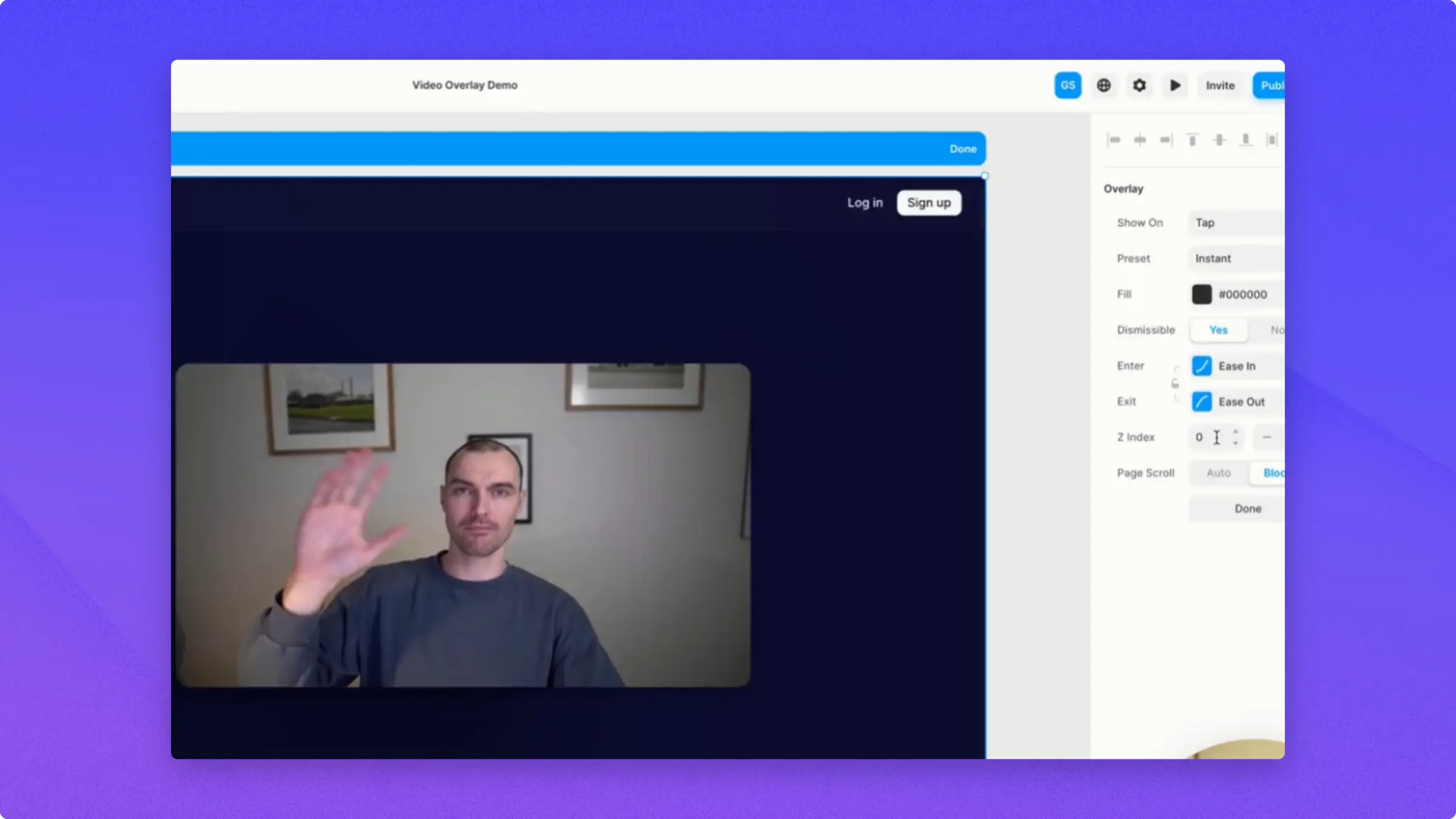 Next, change the **Z index** value to **9**, enough to get a black overlay over the top.
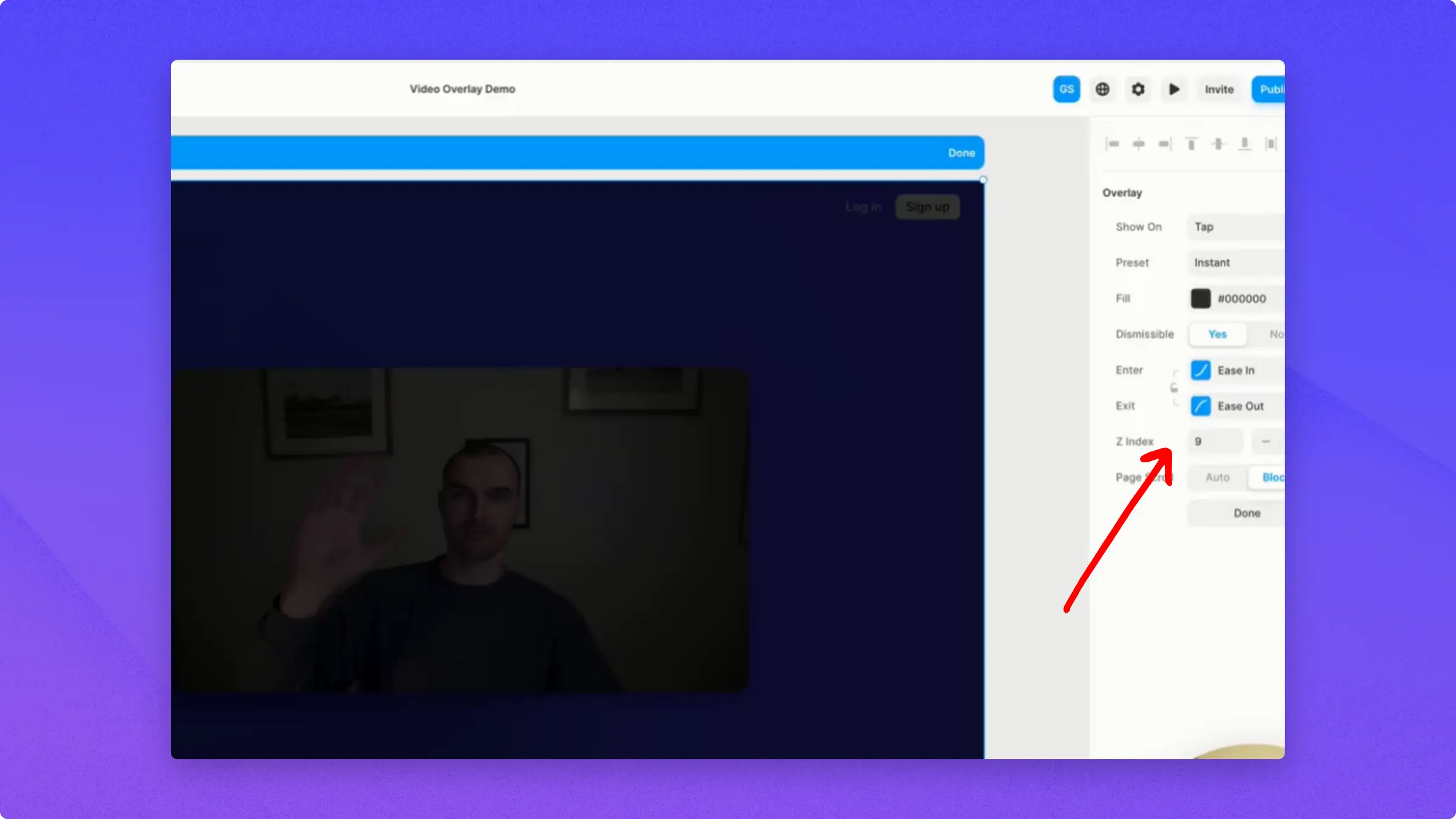 After that, you can still play with the properties if you prefer.
The next thing you're going to do is to get the video on the overlay to repeat the process of embedding HTML.
Copy the embed code and paste it to the **HTML spot** on **Framer**.
After that, you can still play with the properties if you prefer.
The next thing you're going to do is to get the video on the overlay to repeat the process of embedding HTML.
Copy the embed code and paste it to the **HTML spot** on **Framer**.
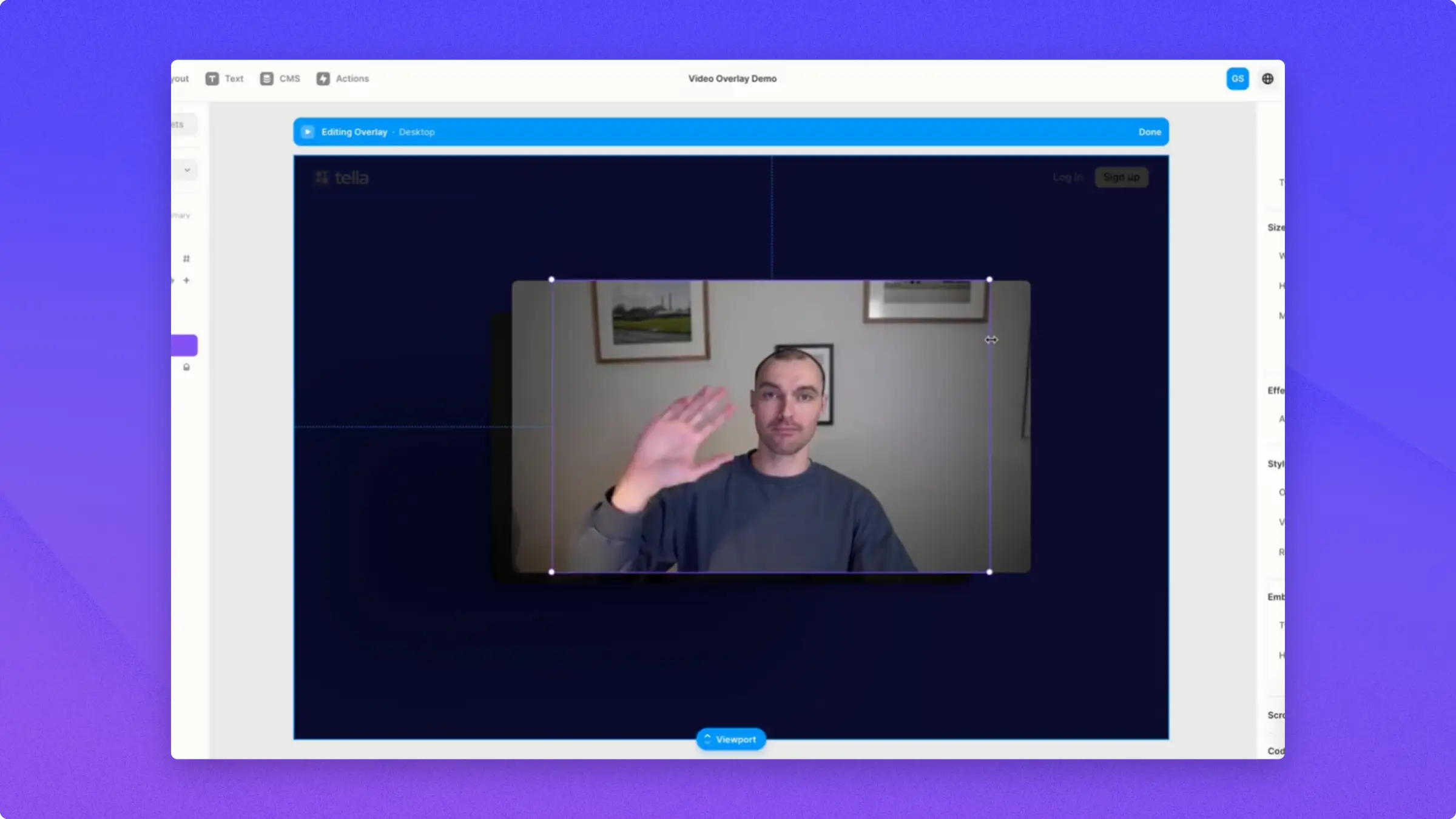 Once pasted, you just need to fix the size according to your liking or play around with its position and you can hit done.
You can then click the preview to see the process that you did.
Once pasted, you just need to fix the size according to your liking or play around with its position and you can hit done.
You can then click the preview to see the process that you did.
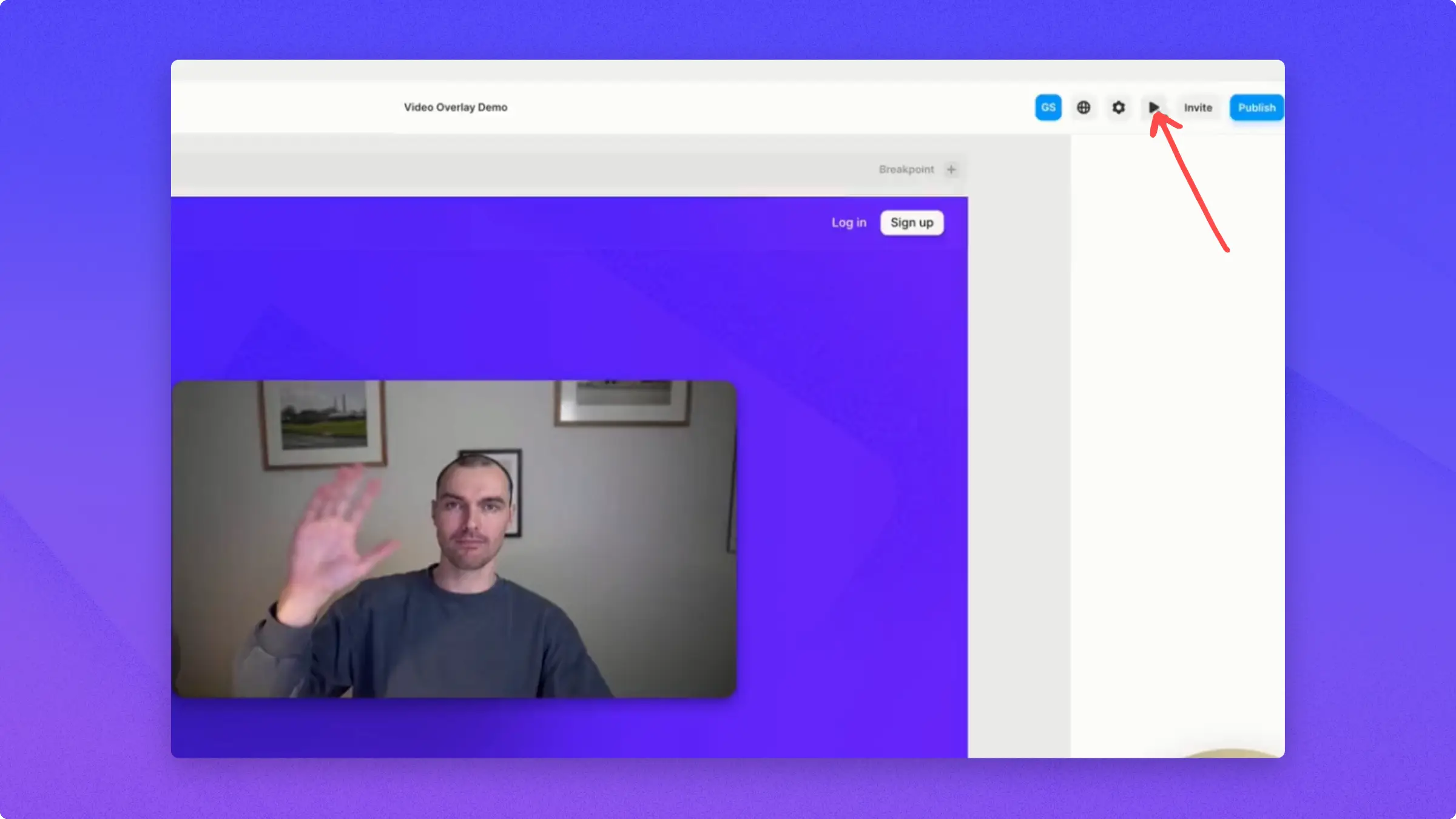 Hover, open it and it autoplays.
 Those are the main ways to embed Tella videos in Framer.