Auto Layouts, in the editor’s Layout panel, analyzes a clip’s transcript and video and adds a sequence of layouts in an editing style picked for your content. Clips must be under 20 minutes.
Auto Layouts, in the editor’s Layout panel, analyzes a clip’s transcript and video and adds a sequence of layouts (camera bubbles, screen-only beats, camera cutaways, side-by-side splits, and TV-presenter compositions) in an editing style that fits your content. It works one clip at a time on clips under 20 minutes.
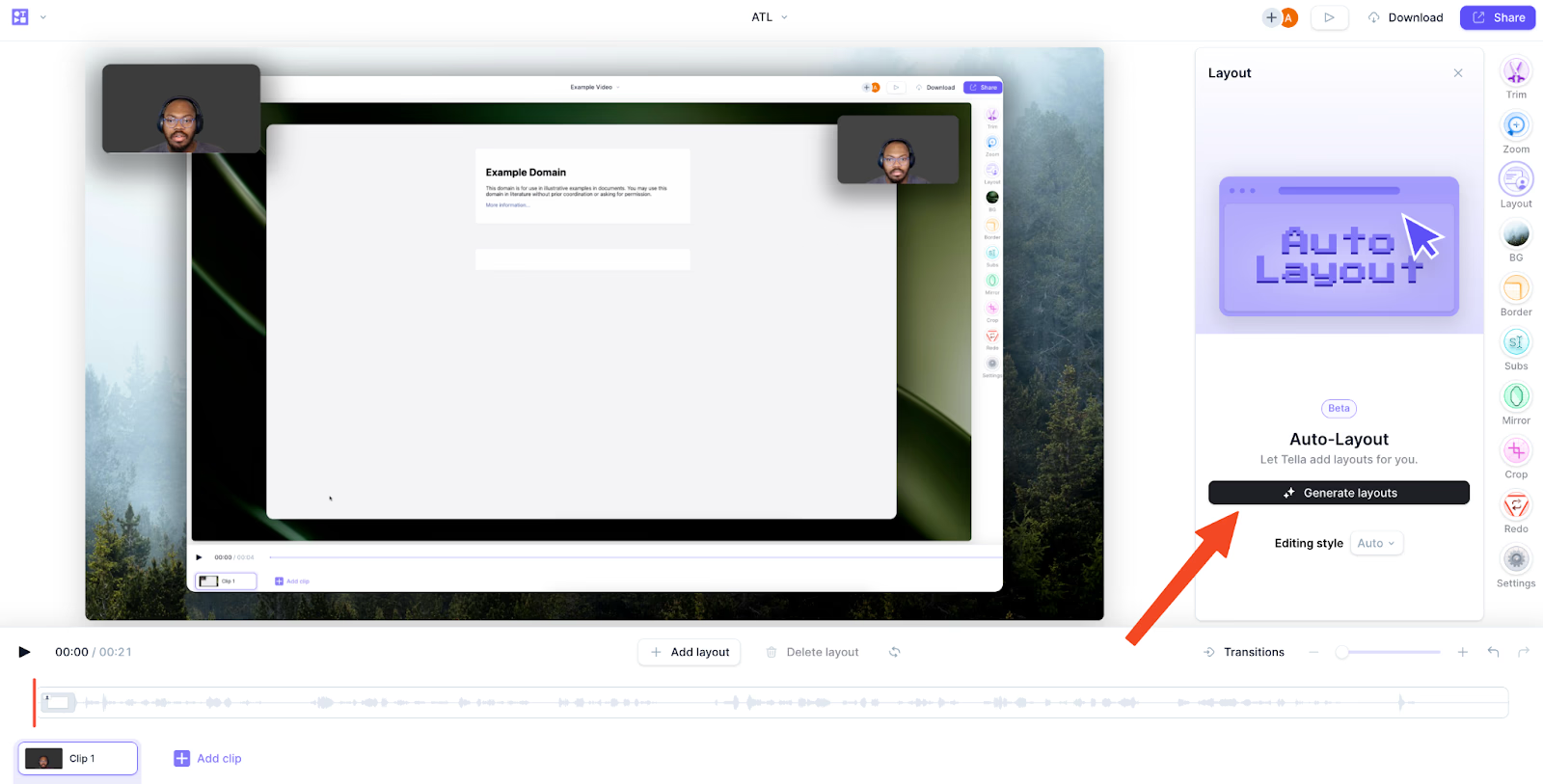
Open a clip in the editor and go to the Layout section.
On short browser windows, Tella keeps Auto Layouts and Generate visible but hides the optional preview and feedback controls to leave room for layout presets.
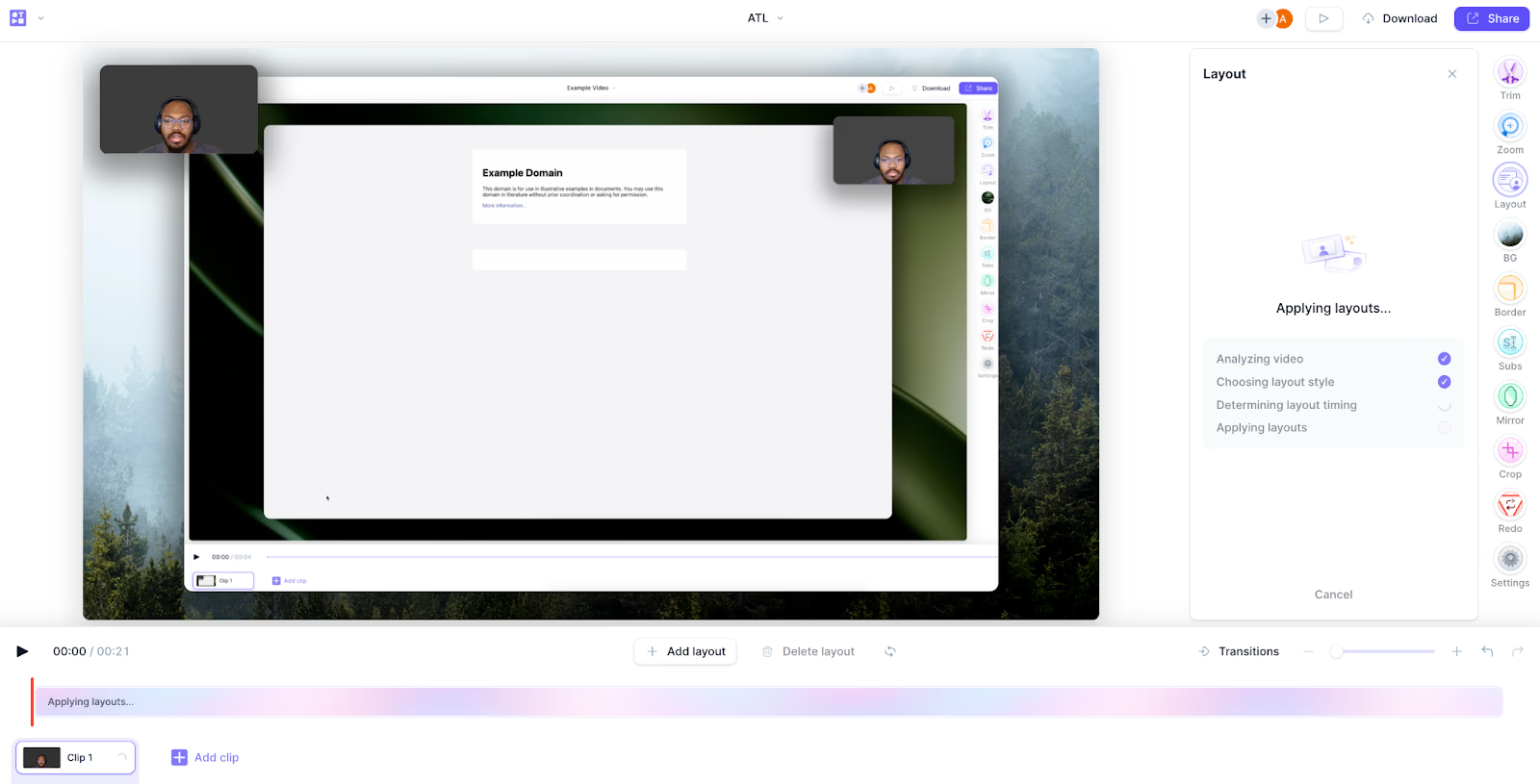
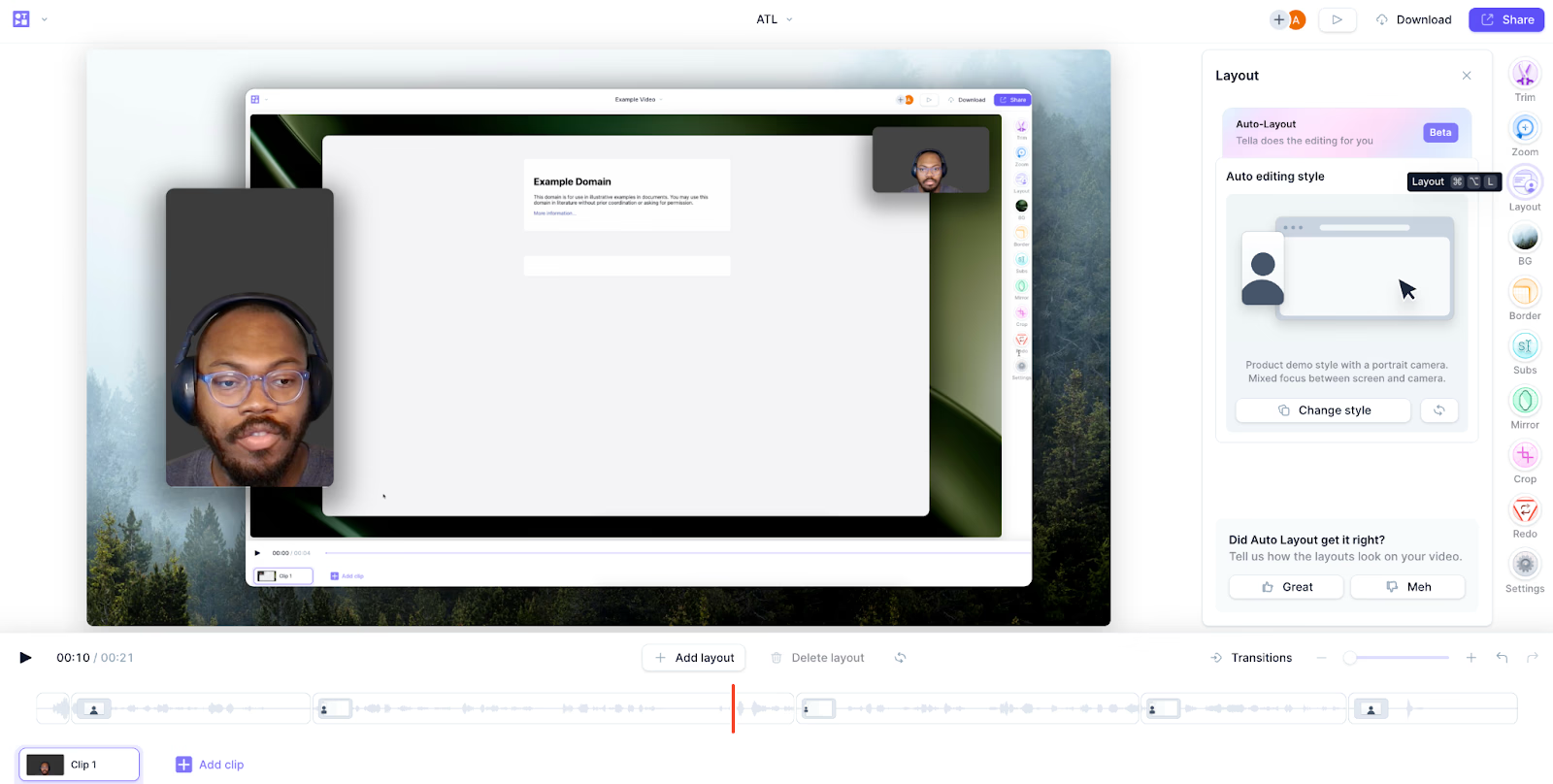
Click Generate. Tella picks the editing style based on the content of your clip, so there’s no style to choose first.Layouts start streaming in and are applied to your clip as they generate.
Wait for the generation to complete.
Review the result. Give a thumbs up or thumbs down to rate it. Your feedback helps tune the model.
Tella picks one of these styles for you based on what you say and show. Each style is tuned for a different kind of content and a different canvas, and the styles available depend on your clip’s recording type and canvas size.
Demo: high-energy proof + commentary; mixes screen reveals, camera cutaways, and punch-ins for product walkthroughs, page critiques, and feature launches
Tutorial: procedural, step-by-step instruction where the viewer needs to follow exact clicks, typing, and configuration
Presentation: speaker-led talks, pitches, recaps, and lessons; includes a hosted TV show variant on landscape canvases that frames the speaker like a presenter
Intro & Outro: only bookends the clip with a camera-led intro and outro and leaves the middle untouched
Landscape (16:9): two-track (camera + screen), screen-only, and camera-only recordings
Portrait (9:16): two-track, screen-only, and camera-only recordings
Square (1:1) and round: two-track and camera-only recordings
The available editing styles and compositions adapt to the canvas, for example, portrait clips use a presenter-forward split, and landscape presentations can use the TV-presenter framing.
Variability: each generation can produce slightly different results; regenerate to find the version you like
Pacing: overrides are used as exceptions to the base layout, so most of the clip stays on the base composition with timed accents around important moments
Processing time: longer clips take longer to generate
Each person can start up to 10 auto layout generations per minute in each workspace. If you see Couldn’t load Auto Layouts after repeated attempts, wait a minute and try again
Make all crop changes before running auto layouts. Cropping afterwards affects every layout and can produce unexpected results
After cropping, you can’t update the generated layouts


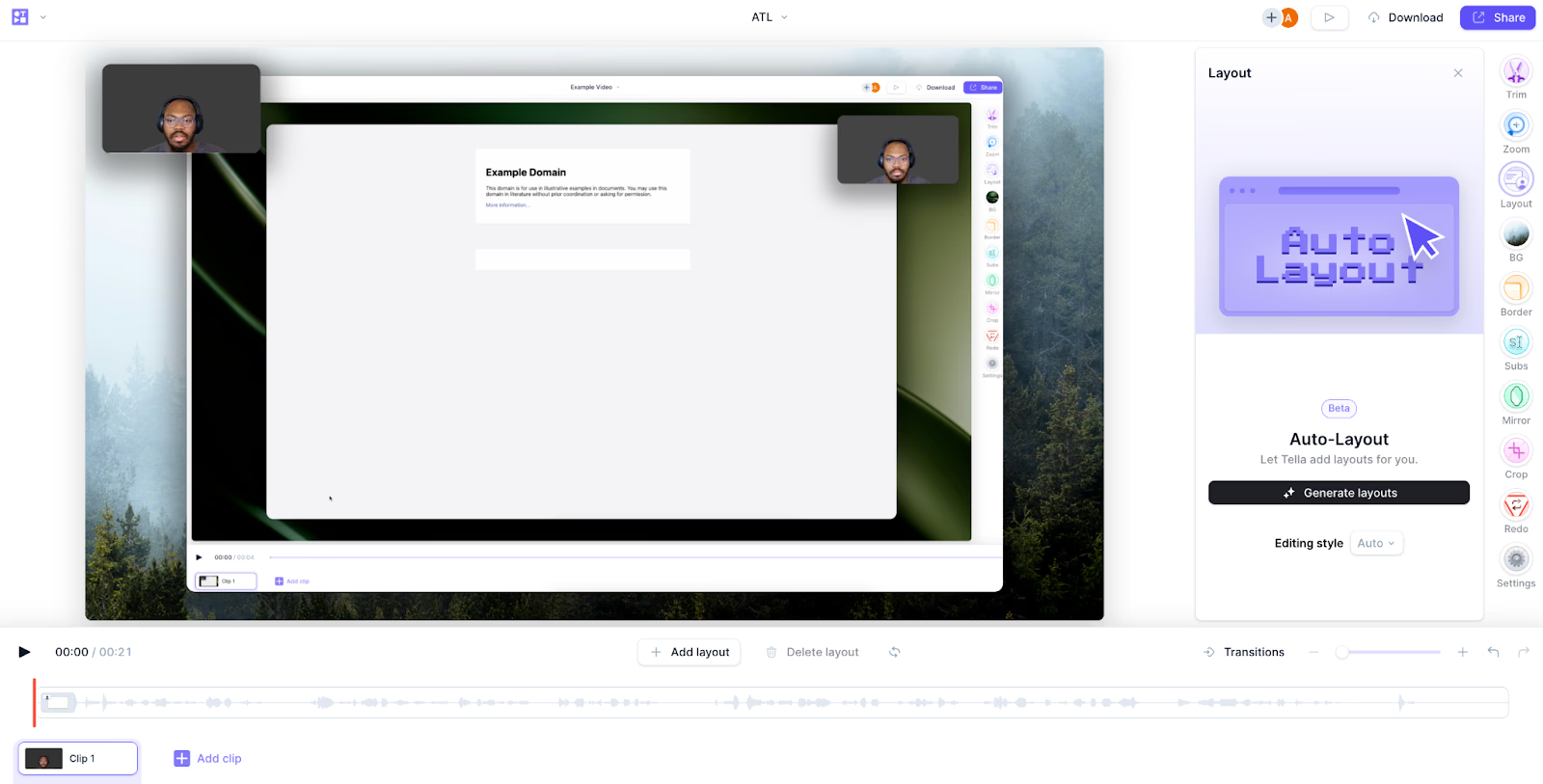 On short browser windows, Tella keeps Auto Layouts and Generate visible but hides the optional preview and feedback controls to leave room for layout presets.