
How to record system audio (desktop sound) in Tella
Want to include sounds from your computer in your Tella recording? This guide explains how to capture system audio (also called desktop audio or application sound) on each Tella recorder.
Mac App
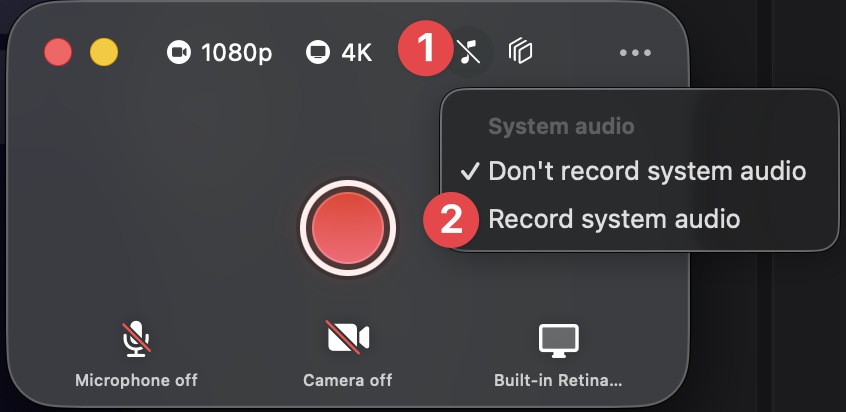
The Tella Mac app can capture system audio natively. Here's how:
Open the Tella Mac app and start a new recording
Click on the music note icon to enable system audio
Web App
When recording with the Tella web app:
Click Record and choose to share your screen
In the screen share dialog, look for the "Share tab audio" toggle at the bottom
Make sure this toggle is enabled before clicking Share
Important: The "Share tab audio" option only appears when sharing a browser tab.
Chrome Extension
The Chrome extension follows the same process as the web app:
Start a recording and select what to share
Enable the "Share tab audio" checkbox in the share dialog
Choose to share a tab or entire screen for best results
Troubleshooting
No system audio in my recording?
Mac App: Check System Settings → Privacy & Security → Screen Recording and ensure Tella has permission
Web/Chrome: Make sure you checked "Share tab audio" when starting the screen share
Windows: System audio capture depends on your browser supporting it - Chrome works best
Audio is too quiet or too loud?
System audio volume is captured at your computer's current output level. Adjust your system volume before recording, or use Tella's audio level controls in the editor after recording.
Can I record system audio without my microphone?
Yes! In the recording controls, you can disable your microphone while keeping system audio enabled. This is useful for recording tutorials with application sounds only.